How to Connect a Bluetooth OBD2 Scanner to Android

Quick Answer
To connect a Bluetooth OBD2 scanner to Android, plug the scanner into your car’s OBD-II diagnostic port, switch the ignition on as directed by the scanner manufacturer, enable Bluetooth on your phone, and pair the device if required. Open a compatible OBD2 app, select the scanner, and connect to the vehicle’s diagnostic system. Classic Bluetooth and Bluetooth Low Energy (BLE) scanners can use different connection methods, so follow the instructions for your exact model.
Steps to connect successfully
- Check compatibility: Confirm that the scanner supports Android and your chosen OBD2 app.
- Find the port: Locate the vehicle’s 16-pin OBD-II connector, usually beneath the dashboard.
- Power the scanner: Insert it securely and set the ignition position recommended by the manufacturer.
- Pair if needed: Use Android Bluetooth settings for compatible classic Bluetooth adapters; BLE devices may connect directly through the app.
- Connect in the app: Select the correct adapter, wait for the connection, and check whether vehicle data appears.
- Test communication: Read diagnostic trouble codes or live data before assuming the setup is complete.
If it won’t connect
- Check whether the scanner uses classic Bluetooth or BLE.
- Close other apps that may already be using the adapter.
- Check Android permissions, scanner power, ignition position, and app compatibility.
A Bluetooth OBD2 scanner lets you read vehicle diagnostic information on an Android phone without a wired connection to the phone. The scanner plugs into your car’s diagnostic port and communicates with a compatible app.
In this guide, I’ll explain how to connect the adapter, choose the right Bluetooth connection method, and troubleshoot common problems. I’ll also clarify what a successful connection can—and cannot—tell you about your vehicle.
In This Guide
- What Is a Bluetooth OBD2 Scanner?
- What Should You Check Before Connecting?
- How Do You Connect a Bluetooth OBD2 Scanner to Android?
- How Do You Choose an App and Read Vehicle Data?
- Why Won’t Your OBD2 Scanner Connect?
- Bluetooth vs. Wi-Fi OBD2 Scanners: What’s the Difference?
- Frequently Asked Questions
What Is a Bluetooth OBD2 Scanner?
A Bluetooth OBD2 scanner is a diagnostic adapter that connects to a vehicle’s onboard diagnostic system and sends supported data to a compatible phone or tablet over Bluetooth. OBD-II stands for On-Board Diagnostics, generation two, a standardized vehicle diagnostic system used across many passenger vehicles.
The adapter and Android app work together. The adapter communicates with the car, while the app presents supported information such as diagnostic trouble codes, sensor readings, and emissions-related data.
What Can an OBD2 Scanner Do?
Depending on the scanner, app, and vehicle, you may be able to:
- Read diagnostic trouble codes (DTCs) stored by supported vehicle systems.
- View live engine data, such as engine speed and coolant temperature.
- Check supported emissions readiness monitors.
- Clear certain diagnostic codes after investigating the underlying problem.
- Record selected sensor readings while diagnosing an issue.
Not every adapter supports every feature. Basic scanners usually focus on standardized powertrain diagnostics, while manufacturer-specific functions may require more capable equipment.
Important distinction: An OBD2 scanner is not automatically a key programmer. Reading engine codes does not mean an adapter can program a transponder chip, register a smart key, or bypass an immobilizer.
Does Every Bluetooth Scanner Work With Android?
No. Compatibility depends on the adapter’s Bluetooth technology, Android version, app support, and the diagnostic protocols used by your vehicle.
Some inexpensive adapters advertise broad compatibility but offer inconsistent communication or limited app support. Before buying or troubleshooting one, check the manufacturer’s compatibility information rather than relying only on the word “Bluetooth.”
What Should You Check Before Connecting?
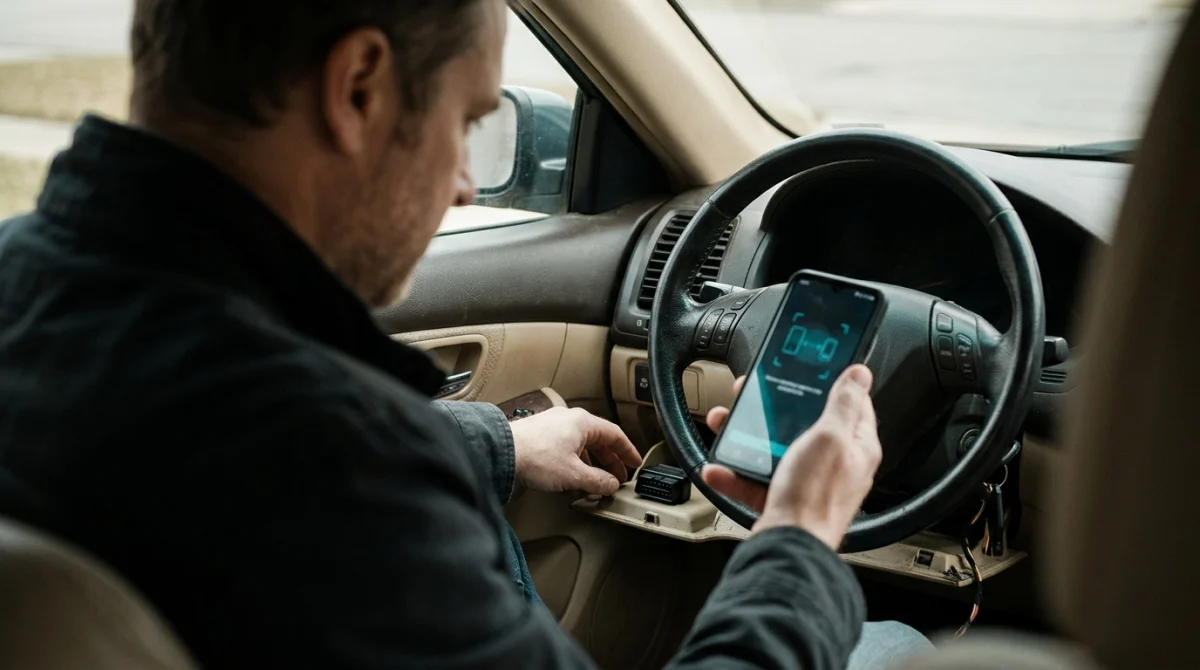
Before connecting the scanner, verify three things: the adapter supports Android, the app supports that adapter, and your vehicle exposes the diagnostic functions you want to use.
1. Identify the Bluetooth Type
Bluetooth OBD2 adapters commonly use one of two connection approaches. Knowing which one you have prevents a common mistake: searching for a device in Android settings when the app is supposed to discover it directly.
- Classic Bluetooth: Many adapters require pairing through Android’s Bluetooth settings before the diagnostic app can communicate with them.
- Bluetooth Low Energy (BLE): Many BLE adapters are discovered and connected inside the compatible app, without conventional Bluetooth pairing in the system settings.
The exact behavior varies by device. Read the adapter’s instructions to determine whether it needs system-level pairing, app-level discovery, or a manufacturer-specific connection procedure.
2. Check Your Android Phone
Make sure Bluetooth is enabled and your phone has enough battery to complete the diagnostic session. Depending on the Android version and app, you may also need to grant nearby-device, Bluetooth, or location permissions.
Older apps may request location access for Bluetooth scanning, while newer Android versions offer more specific nearby-device permissions. Grant only the permissions the app needs, and review its privacy information if a request seems unrelated to diagnostics.
3. Locate the Vehicle’s OBD-II Port
Most compatible passenger vehicles have a 16-pin diagnostic connector inside the cabin, often below the steering wheel or dashboard. Other possible locations include the lower dashboard, center console area, or a panel near the driver’s footwell.
Consult the owner’s manual if you cannot find it. Do not force the scanner into a connector that does not match, and avoid disturbing wiring around the pedals or steering column.
4. Check the Vehicle’s Compatibility
OBD-II coverage varies by country, vehicle category, model year, and the functions you want to access. A vehicle may support standard emissions-related diagnostics without exposing every manufacturer-specific module to a generic adapter.
If you need a particular function, such as transmission data, ABS diagnostics, airbag codes, or key-system information, confirm that the app and adapter support that function for your exact vehicle.
Expert tip: If you are diagnosing an immobilizer or key-fob problem, confirm the scanner’s supported modules before relying on it. A basic engine-code reader may not access the body-control or immobilizer system.
How Do You Connect a Bluetooth OBD2 Scanner to Android?
To connect a Bluetooth OBD2 scanner, install a compatible app, plug the adapter into the diagnostic port, turn the ignition to the required position, and establish the Bluetooth connection using the method specified for your adapter.
Step 1: Install a Compatible OBD2 App
Choose an Android app that explicitly supports your scanner model or its communication standard. Check the app’s current documentation and listing for supported adapters, vehicle features, Android requirements, and any paid features.
Install the app from a trusted source. Avoid unofficial downloads that promise unrestricted access to vehicle systems without explaining their permissions or compatibility.
Step 2: Plug the Scanner Into the OBD-II Port
Park the vehicle safely and switch off the ignition before inserting the adapter unless its instructions specify another procedure. Push the connector into the port carefully until it fits securely.
Some adapters receive power as soon as they are plugged in. Others may have a power switch or indicator light that helps you confirm their status.
Step 3: Set the Ignition Position
Follow the vehicle and scanner instructions for powering the diagnostic system. Many basic diagnostic sessions use the ignition-on, engine-off position, while some checks require the engine to be running.
For an ignition-on, engine-off session, switch the ignition on without starting the engine when the vehicle allows it. On push-button-start vehicles, the correct procedure varies, so consult the owner’s manual rather than repeatedly pressing the start button at random.
Keep the vehicle in Park or Neutral as appropriate, apply the parking brake, and never attempt to configure the scanner while driving.
Step 4: Enable Bluetooth on Android
Open your phone’s Settings and switch Bluetooth on. Keep the phone close to the adapter during the initial connection.
If your adapter uses classic Bluetooth, open the available-device list and select the correct scanner name. Enter a pairing PIN only if the manufacturer’s instructions provide one; do not assume every adapter uses the same code.
If your adapter uses BLE, skip manual pairing unless its instructions specifically require it. Open the diagnostic app and use its scan or connect function to discover the adapter.
Step 5: Select the Adapter in the App
Open the app’s connection settings and choose the correct Bluetooth adapter or device type. Some apps have separate choices for classic Bluetooth, BLE, Wi-Fi, and USB connections.
Grant the necessary Android permissions when prompted. If the scanner appears but will not connect, check whether another diagnostic app is already using it, then close that app before trying again.
Step 6: Connect to the Vehicle
After the phone connects to the adapter, the app normally attempts to communicate with the vehicle’s diagnostic system. Depending on the app, you may see separate connection indicators for the phone-to-adapter link and the adapter-to-vehicle link.
Wait for the app to finish initializing. If it reports that the adapter is connected but the vehicle is not responding, the Bluetooth link may be working while the diagnostic communication is failing.
Step 7: Confirm That the Connection Works
Start with a basic diagnostic function, such as reading supported diagnostic trouble codes or viewing a standard live-data value. If the app returns vehicle information, the connection is likely working for that function.
A blank code list does not necessarily mean the scanner has failed. It may mean no supported codes are stored, the selected module is unavailable, or the app has not completed communication.
Section takeaway: A successful setup requires both a working Bluetooth connection and communication with the vehicle. Confirm each link separately before troubleshooting further.
How Do You Choose an App and Read Vehicle Data?
The right Android OBD2 app is one that supports your adapter, communicates reliably with your vehicle, and provides the diagnostic functions you need. A long feature list is not useful if the app cannot communicate with your specific hardware.
What Should You Look for in an App?
- Adapter compatibility: Check support for your exact scanner or Bluetooth type.
- Diagnostic functions: Confirm whether it reads standard engine codes, live data, readiness monitors, or additional modules.
- Clear explanations: Prefer an app that identifies codes and describes their general meaning without presenting guesses as confirmed diagnoses.
- Connection controls: Look for clear adapter selection, connection status, and troubleshooting guidance.
- Cost transparency: Review subscriptions, in-app purchases, and paid diagnostic features before relying on them.
App compatibility and pricing can change. Check the current listing and developer documentation before installing or purchasing an app.
How Do You Read Diagnostic Trouble Codes?
Once the app communicates with the vehicle, open its diagnostic or fault-code section and request the supported codes. Record the exact code and any accompanying description before deciding what to inspect next.
A diagnostic trouble code identifies a condition detected by a vehicle system. It does not automatically identify a failed component, so use the code as a starting point for diagnosis rather than a definitive parts-replacement instruction.
Can You Clear Codes With a Bluetooth Scanner?
Many compatible apps can clear certain diagnostic trouble codes, but you should investigate the underlying problem first. Clearing a code may erase useful diagnostic information or reset emissions readiness monitors, and the warning light may return if the fault remains.
Do not clear safety-related or emissions-related faults simply to hide a warning. If a warning indicates a serious problem, follow the vehicle manufacturer’s guidance and obtain professional diagnosis where needed.
Expert tip: Save the original codes and available freeze-frame information before clearing anything. Those details can help a technician identify when and under what conditions the fault occurred.
Why Won’t Your OBD2 Scanner Connect?
Most connection problems come from a mismatch between the Bluetooth type and app, missing Android permissions, inadequate scanner power, or a failure to communicate with the vehicle. Work through the checks below in order instead of repeatedly pairing and disconnecting at random.
The Scanner Does Not Appear in Bluetooth Settings
First, determine whether your adapter uses classic Bluetooth or BLE. BLE devices often appear through the app’s own discovery process rather than the conventional Android pairing screen.
- Check the scanner’s manual for the correct discovery method.
- Make sure the adapter is powered and properly inserted.
- Move the phone closer to the adapter.
- Turn Bluetooth off and on, then retry the recommended connection method.
- Check whether another phone or app is already connected to the adapter.
If the device remains undiscoverable, check the manufacturer’s instructions for reset or status-indicator procedures. Avoid trying random button combinations or pairing codes.
Android Shows the Scanner as Paired, but the App Will Not Connect
Pairing only establishes the phone’s Bluetooth relationship with the adapter. The app must still support that adapter and use the correct connection type.
- Confirm that the selected device is the correct scanner.
- Check the app’s Bluetooth or adapter settings.
- Grant required nearby-device or Bluetooth permissions.
- Close other diagnostic apps that might be using the connection.
- Restart the app and retry the connection process.
If the adapter is not supported by the app, changing Android settings will not make the two compatible. Consult the app developer or choose a supported application.
The App Connects to Bluetooth but Cannot Communicate With the Car
This symptom often means the phone can reach the adapter, but the adapter cannot establish a valid diagnostic session with the vehicle.
- Ignition state: Set the ignition to the position required by the app and vehicle.
- Power supply: Check the adapter’s status indicator and the vehicle’s diagnostic-port power supply.
- Connector fit: Ensure the adapter is fully inserted without forcing it.
- Vehicle support: Confirm that the car supports the requested diagnostic protocol and functions.
- Adapter quality: Consider whether the adapter may be defective or incompatible.
If the adapter never powers on, or several scanners fail in the same vehicle, the issue may involve the vehicle’s port, fuse, wiring, or power supply. Consult the owner’s manual or have a qualified technician inspect the circuit rather than probing connector pins without the correct procedure.
The Connection Keeps Dropping
Repeated disconnections can result from weak wireless performance, an unstable adapter, app conflicts, or power interruptions. Begin with the simplest checks.
- Keep the phone close to the adapter.
- Close unused diagnostic apps and background tools that may compete for the connection.
- Update the app through a trusted source if an update is available.
- Inspect the adapter for a loose fit or damaged casing.
- Test the adapter with a supported phone or app, if available.
If the connection drops only when the engine starts, the ignition or power conditions may be affecting the adapter. Stop the test if the scanner becomes hot, smells burnt, or behaves abnormally.
Android Permissions Are Blocking the Connection
Android permission requirements vary by operating-system version and app implementation. A diagnostic app may need nearby-device or Bluetooth access to discover and communicate with an adapter.
Open the app’s information page in Android settings and review its permissions. Enable only the permissions needed for the intended connection, then retry the app’s discovery process.
Section takeaway: Separate phone-to-adapter problems from adapter-to-vehicle problems. This distinction narrows the likely cause and avoids replacing working hardware unnecessarily.
Bluetooth vs. Wi-Fi OBD2 Scanners: What’s the Difference?
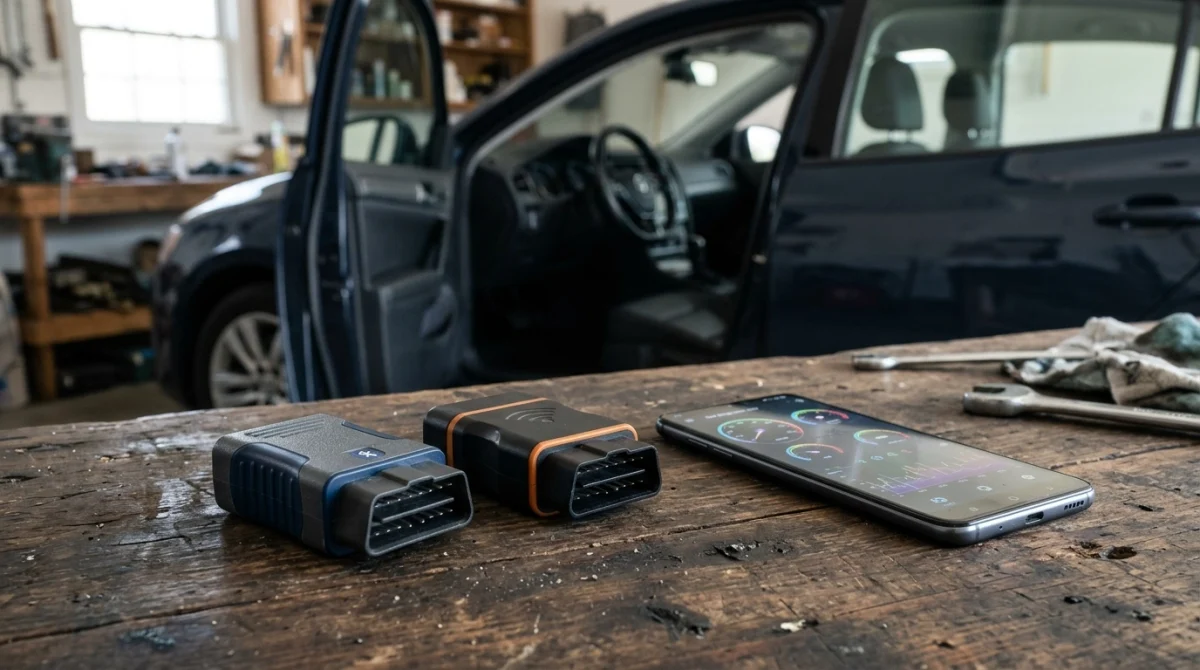
Bluetooth and Wi-Fi adapters both let compatible Android apps communicate with a vehicle’s diagnostic system, but they establish the wireless link differently. The best choice depends on your phone, app, scanner, and intended diagnostic tasks.
| Feature | Bluetooth OBD2 | Wi-Fi OBD2 |
|---|---|---|
| Connection method | Pairs through Android settings or connects through an app, depending on Bluetooth type. | Usually joins the adapter’s Wi-Fi network or follows the manufacturer’s network setup. |
| Phone settings | Bluetooth and relevant permissions may be needed. | Wi-Fi access and sometimes network-related permissions are needed. |
| Internet access | Usually does not require an internet connection for local diagnostics. | A direct connection to the adapter may limit normal internet access unless the phone supports another connection route. |
| Compatibility | Depends on classic Bluetooth or BLE support, the app, and the adapter. | Depends on Wi-Fi support and the app’s network connection method. |
| Best selection rule | Choose when the adapter is explicitly supported by your Android app. | Choose when the app and adapter are designed to work together over Wi-Fi. |
Which One Should You Use?
For most users, the simplest option is an adapter that is explicitly supported by a reputable Android diagnostic app. Do not assume Bluetooth is always faster, more reliable, or more capable than Wi-Fi; implementation and hardware quality matter.
If you already own an adapter, check its exact model and connection instructions before purchasing another one. A correct app setting may solve the problem without replacing the hardware.
Does a Bluetooth OBD2 Scanner Work With Every Car System?
No. Wireless connectivity does not guarantee access to every control module or diagnostic function. Standard OBD-II functions and manufacturer-specific diagnostics are different levels of capability.
Generic adapters commonly focus on emissions-related engine diagnostics. Access to ABS, airbags, body-control modules, or immobilizer systems requires compatible hardware and software, and some functions may require specialized professional equipment.
Frequently Asked Questions
Do I Need to Pair an OBD2 Scanner in Android Settings?
It depends on the adapter. Classic Bluetooth scanners commonly require pairing through Android settings, while many BLE scanners connect directly through their compatible diagnostic app. Check your scanner’s instructions before choosing a connection method.
Why Does My OBD2 Scanner Connect but Show No Data?
The phone may be connected to the adapter without establishing communication with the car. Check the ignition position, adapter power, app settings, vehicle compatibility, and selected diagnostic function. A successful Bluetooth connection alone does not confirm that the vehicle is communicating.
Can I Leave a Bluetooth OBD2 Scanner Plugged In?
Some adapters draw power while the vehicle is parked, which can contribute to battery drain depending on the adapter’s design and the vehicle’s electrical system. Unless the manufacturer confirms that continuous connection is appropriate, unplug the adapter after your diagnostic session.
Do I Need Mobile Data or Wi-Fi to Use a Bluetooth OBD2 Scanner?
Basic local diagnostics usually work without mobile data or an internet connection. However, downloading an app, checking online code databases, updating software, or accessing cloud-based features may require internet access.
Can an OBD2 Scanner Read ABS or Airbag Codes?
Some advanced scanners can access ABS, airbag, and other manufacturer-specific modules, but many basic adapters cannot. Check the scanner and app compatibility information for your exact vehicle before relying on those functions.
Can a Bluetooth OBD2 Scanner Program a Car Key?
A basic Bluetooth OBD2 adapter generally reads standard diagnostic information and does not provide full key-programming capabilities. Transponder keys, smart keys, and immobilizer systems may require specialized diagnostic equipment, security authorization, and vehicle-specific procedures.
Locksmith’s note: If your vehicle does not recognize a replacement key, verify that your diagnostic tool supports the immobilizer system before attempting any programming procedure.
Which Android Permission Should I Allow if the Scanner Is Not Found?
Start with the nearby-device or Bluetooth permission requested by your diagnostic app. Depending on your Android version and the app’s implementation, additional permissions may be needed. Google’s official Bluetooth permission documentation explains how these requirements vary across Android versions.
Final Takeaway: Connect Your Scanner and Verify the Results
Connecting a Bluetooth OBD2 scanner to Android is usually straightforward once you identify the adapter type and choose a compatible app. Plug the scanner into the vehicle, follow the correct ignition procedure, establish the Bluetooth connection, and confirm that the app can retrieve supported diagnostic information.
If the connection fails, troubleshoot the phone-to-adapter link separately from the adapter-to-vehicle connection. This simple distinction helps you identify compatibility problems without replacing equipment unnecessarily.
For additional technical guidance, consult the U.S. Environmental Protection Agency for emissions-related OBD information and your scanner manufacturer’s official support documentation for model-specific connection instructions.
Finally, remember that a diagnostic code is evidence of a detected condition, not automatic proof that a particular part has failed. Save the codes, investigate the cause, and seek qualified assistance when the fault involves vehicle safety, security systems, or procedures beyond your equipment’s capabilities.
