How to Connect a Bluetooth OBD2 Scanner to an iPhone

Quick Answer
To connect a Bluetooth OBD2 scanner to an iPhone, first confirm that your adapter supports iOS, then plug it into your car’s OBD2 port, turn on the ignition, and connect through the scanner’s compatible app. Many iPhone-compatible adapters use Bluetooth Low Energy (BLE) or Wi-Fi, while traditional Bluetooth adapters designed for Android may not work with iOS. Check the manufacturer’s OBD adapter compatibility guidance before troubleshooting.
Steps to connect your scanner
- Check compatibility: Verify that your exact scanner model supports iPhone and your chosen diagnostic app.
- Locate the port: Find the vehicle’s 16-pin OBD2 connector, usually beneath the dashboard.
- Power the adapter: Plug in the scanner and switch the ignition to the position specified by its manufacturer.
- Open the app: Install the compatible iOS diagnostic app and allow Bluetooth access if requested.
- Connect and test: Follow the app’s connection instructions, then try reading diagnostic trouble codes.
Before you start
- Don’t assume every Bluetooth scanner works: Check the exact model, not just the generic ELM327 label.
- Keep the vehicle parked: Connect and run diagnostic checks before driving.
Connecting a Bluetooth OBD2 scanner to an iPhone should be straightforward, but adapter compatibility often causes confusion. I’ll walk you through choosing the right connection method, setting up the app, and fixing common connection problems.
I’ll also explain what the scanner can tell you about a check-engine light and where its limits matter, especially when you’re diagnosing electrical issues or problems involving a vehicle’s key and immobilizer system.
In This Guide
- 1. How do you check whether a Bluetooth OBD2 scanner works with an iPhone?
- 2. How do you connect a Bluetooth OBD2 scanner to an iPhone?
- 3. Which iPhone app should you use with an OBD2 scanner?
- 4. Why won’t your Bluetooth OBD2 scanner connect to your iPhone?
- 5. How do you read OBD2 codes, and what can the scanner diagnose?
- 6. Bluetooth vs. Wi-Fi OBD2 scanners: Which works best with an iPhone?
- 7. Frequently asked questions
1. How Do You Check Whether a Bluetooth OBD2 Scanner Works With an iPhone?
A Bluetooth OBD2 scanner works with an iPhone only when its wireless interface and diagnostic app support iOS. The word “Bluetooth” on the packaging does not guarantee compatibility.
Understand the different Bluetooth types
Bluetooth Low Energy (BLE) is a wireless connection method used by many modern iPhone-compatible OBD2 adapters. Traditional Bluetooth, sometimes called Bluetooth Classic, works differently and may not support the connection method an iOS diagnostic app requires.
That distinction explains why a scanner can work perfectly with an Android phone but fail to connect to an iPhone. The hardware may be fine; the wireless interface may simply be incompatible.
Before buying or troubleshooting an adapter, check these details:
- iOS compatibility: Confirm that the exact adapter model supports your iPhone’s operating system.
- Connection method: Look for BLE, an explicitly iOS-compatible Bluetooth interface, or supported Wi-Fi connectivity.
- App compatibility: Check which diagnostic apps support the adapter.
- Vehicle coverage: Verify that the scanner supports your car’s model year and diagnostic protocol.
- Diagnostic functions: Confirm whether you need basic engine codes, live sensor data, or manufacturer-specific information.
What is an OBD2 scanner?
An OBD2 scanner is a diagnostic device that communicates with a vehicle’s onboard diagnostic system. It retrieves supported fault codes and, depending on the adapter, vehicle, and app, may display live data or emissions-monitoring information.
The adapter provides the link between your vehicle and phone. The app interprets the information and presents it in a readable format.
For example, an adapter might retrieve a code associated with an engine misfire. The app can explain the code, but further testing may still be necessary to identify the faulty component.
Check the scanner before connecting it
Don’t rely on the generic ELM327 name alone. That label identifies a family of diagnostic interfaces, not a guarantee that every adapter supports every iPhone or application.
Manufacturer documentation is the safest place to confirm compatibility. For example, OBDLink’s adapter comparison guide distinguishes models by operating-system support and wireless connection type.
Section takeaway: Confirm the exact adapter model, its iOS support, and its compatible app before spending time troubleshooting.
2. How Do You Connect a Bluetooth OBD2 Scanner to an iPhone?
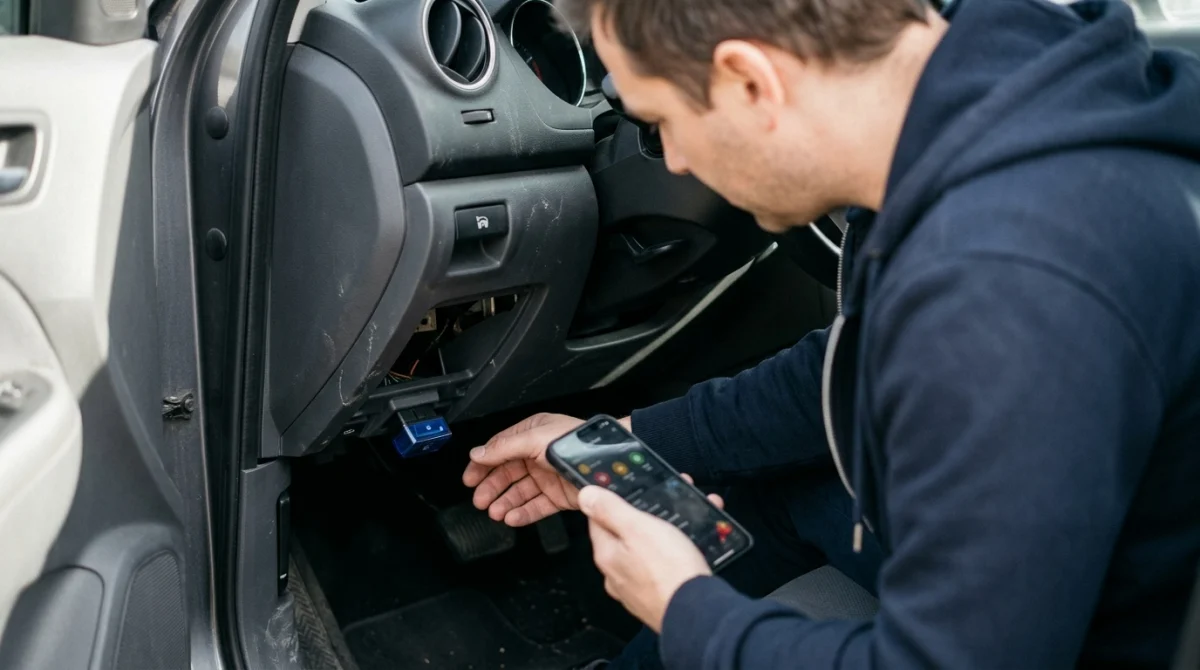
To connect your scanner, plug it into the vehicle, prepare the iPhone, and follow the adapter manufacturer’s pairing instructions. Some adapters appear in iPhone Bluetooth settings, while others must connect directly through their diagnostic app.
Step 1: Find your vehicle’s OBD2 port
Most OBD2 ports are inside the passenger compartment, commonly below the steering wheel. Depending on the vehicle, the connector may sit behind a small cover or near the lower dashboard.
Check these common locations if you cannot find it:
- Under the driver’s side dashboard, near the steering column.
- Below the dashboard close to the driver’s knees.
- Behind a removable trim panel near the steering wheel.
- Near the center console or lower dashboard on some vehicles.
Consult your owner’s manual if the connector isn’t obvious. Never force a scanner into a port that doesn’t match its plug.
Step 2: Plug in the adapter
Insert the scanner into the 16-pin OBD2 connector, making sure it sits securely. Many adapters receive power from the vehicle as soon as you plug them in.
Look for a status light if your adapter has one. A light may indicate power, Bluetooth activity, or a diagnostic connection, depending on the manufacturer’s design.
Don’t assume that a lit indicator means your iPhone has connected. It may only show that the adapter is receiving power.
Step 3: Set the ignition correctly
Many scanners need the ignition switched on before they can communicate with the vehicle. Depending on the vehicle and adapter, you may need the ignition in the accessory or ON position, or the engine running.
Follow the scanner’s instructions and keep the vehicle safely parked. If the engine doesn’t need to run, using the specified ignition-on position may be sufficient.
Remember that leaving the ignition on can drain the vehicle’s battery. Avoid leaving the car in that state longer than necessary.
Step 4: Prepare your iPhone
Unlock your iPhone and install the diagnostic app recommended for your scanner. Turn on Bluetooth in Settings if you’re using a Bluetooth adapter.
When the app requests Bluetooth permission, allow access if you want it to discover and communicate with the adapter. The exact permission prompts can vary by iOS version.
Keep the phone close to the adapter during initial setup. Also, close any other diagnostic app that might already be using the same scanner.
Step 5: Pair or connect through the app
This is where the procedure differs between adapters. Follow the instructions for your specific model rather than assuming every scanner needs manual pairing.
- For adapters that require iPhone pairing: Open Settings, select Bluetooth, and choose the adapter when it appears. Enter a PIN only if the manufacturer specifies one.
- For BLE adapters that connect inside the app: Open the diagnostic app and select its connection or adapter menu. Choose your scanner when it appears.
- For Wi-Fi adapters: Open the iPhone’s Wi-Fi settings and connect to the adapter’s network if the manufacturer’s instructions require it.
- For all connection types: Return to the diagnostic app and wait for confirmation that it has established communication with the vehicle.
Apple’s Bluetooth accessory setup guide explains standard Bluetooth pairing. However, an OBD2 adapter’s own instructions take priority when its connection method differs.
Step 6: Confirm the connection works
Once the app reports a successful connection, select a basic diagnostic function such as reading engine fault codes. A successful result confirms that the app is communicating with the vehicle, not merely detecting the adapter.
If the app shows no codes, that doesn’t necessarily mean the scanner failed. Your vehicle may have no stored codes in the systems the adapter can access.
Section takeaway: A complete connection has three parts: adapter power, a working phone-to-adapter link, and communication with the vehicle’s diagnostic system.
3. Which iPhone App Should You Use With an OBD2 Scanner?
The best iPhone diagnostic app is one that explicitly supports your adapter model and provides the functions you need. A popular app cannot compensate for incompatible scanner hardware.
Start with the manufacturer’s app
When an adapter has a dedicated app, begin there. The manufacturer can usually provide model-specific connection instructions and compatibility information.
For example, the OBDLink iPhone app supports specified OBDLink adapters rather than every generic Bluetooth scanner. Check the current App Store listing before installing it for a different brand.
Some adapters also work with independent diagnostic apps. Confirm that both the app and the adapter support the same wireless interface.
Choose the app based on your goal
Different drivers need different diagnostic functions. A simple code reader may be enough for a check-engine light, while more detailed troubleshooting can require live data and manufacturer-specific support.
- Basic fault codes: Choose an app that reads standard engine diagnostic trouble codes.
- Live sensor data: Look for supported readings such as engine speed, coolant temperature, and oxygen-sensor information.
- Emissions readiness: Check whether the app displays supported readiness-monitor status.
- Advanced diagnostics: Verify support for your vehicle brand, control modules, and enhanced diagnostic functions.
- Reports and records: Check whether the app can save codes or export diagnostic information for a repair shop.
Do you need a paid app?
Not necessarily. Some diagnostic apps provide basic code reading at no charge, while others charge for advanced features, subscriptions, or manufacturer-specific add-ons.
Check the app’s current pricing, supported adapters, and in-app purchases before choosing one. An app with more features isn’t automatically better for a basic diagnostic task.
Expert tip: Before buying an adapter or paying for an app, confirm that the combination supports your vehicle’s year, make, model, and the diagnostic functions you need.
4. Why Won’t Your Bluetooth OBD2 Scanner Connect to Your iPhone?
Most connection failures come from incompatible hardware, incorrect pairing procedures, missing permissions, insufficient adapter power, or an app that cannot communicate with the vehicle. Troubleshoot these possibilities in order before replacing the scanner.
The scanner doesn’t appear in Bluetooth settings
This does not always mean the adapter is defective. Some BLE scanners are designed to be discovered and connected through their companion app instead of appearing as conventional paired devices.
Try these checks:
- Read the manufacturer’s connection instructions again.
- Open the correct diagnostic app and look for its adapter discovery screen.
- Confirm that the adapter supports iOS and your iPhone’s software version.
- Unplug the adapter, wait briefly, and reconnect it.
- Turn Bluetooth off and back on in Settings if the adapter uses Bluetooth.
If the scanner still doesn’t appear, confirm whether it uses Bluetooth Classic, BLE, or Wi-Fi. That detail often identifies the problem faster than repeatedly restarting the phone.
The iPhone connects, but the app cannot communicate
A phone may recognize an adapter without establishing a working diagnostic connection. The app still needs to communicate with the adapter and receive valid responses from the vehicle.
Try closing other diagnostic apps and reconnecting through the intended app. Some adapters support only one active diagnostic session at a time.
Also check the ignition position. If the vehicle’s diagnostic system isn’t awake, the adapter may power on without receiving the information the app expects.
The scanner has no power
If the adapter shows no sign of power, check whether it’s fully inserted into the OBD2 port. Some ports can also be affected by a blown fuse or a vehicle-specific electrical problem.
Don’t remove random fuses or bridge electrical terminals to test the connector. Consult the owner’s manual for the correct fuse information, or ask a qualified technician to check the port’s power supply.
If other devices also fail to power from the vehicle’s diagnostic connector, the problem may be with the vehicle rather than the scanner.
The app finds the scanner but cannot read codes
This problem may indicate an ignition setting, a communication-protocol issue, an unsupported vehicle, or a limitation in the adapter or app. It doesn’t automatically mean the engine computer has failed.
Work through the following checks:
- Verify that the ignition is in the position specified by the scanner manufacturer.
- Confirm that the app has selected the correct adapter.
- Check that your vehicle is supported by the scanner.
- Close competing diagnostic apps and try again.
- Follow the manufacturer’s protocol or connection troubleshooting instructions.
For model-specific help, consult the manufacturer’s support resources. OBDLink’s connection troubleshooting guide provides additional checks for its compatible adapters.
Quick troubleshooting reference
| Symptom | Likely cause | First action |
|---|---|---|
| Adapter missing from Bluetooth settings | App-based BLE connection or incompatibility | Check the required connection method. |
| No indicator light | Poor fit, no power, or adapter fault | Reseat the adapter and inspect the port. |
| Phone connects, app fails | Wrong app, competing session, or missing permission | Close other apps and verify compatibility. |
| App cannot read vehicle data | Ignition, protocol, or vehicle support issue | Check ignition settings and supported protocols. |
| Connection drops repeatedly | Unstable wireless link or adapter issue | Reconnect nearby and follow the adapter’s reset guidance. |
Section takeaway: Check compatibility and the intended connection method first, then work through power, app permissions, ignition settings, and vehicle communication.
5. How Do You Read OBD2 Codes, and What Can the Scanner Diagnose?
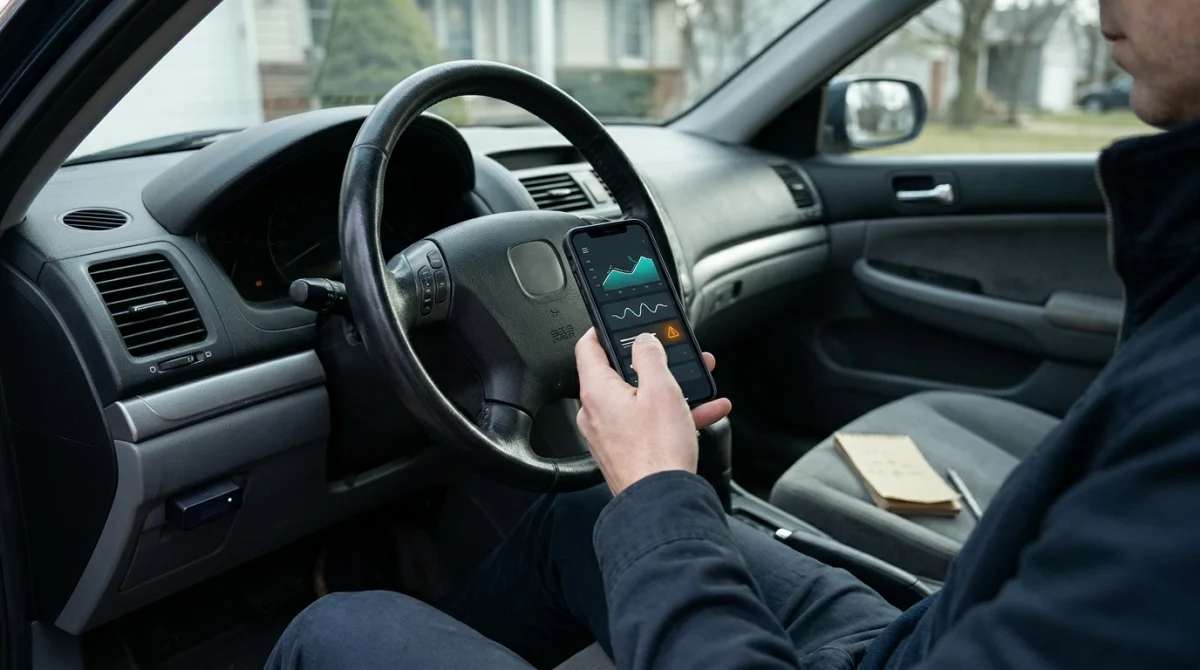
After connecting successfully, open the app’s diagnostic section and request the supported trouble codes. These codes help identify systems that have reported a fault, but they don’t always identify the exact part that needs replacement.
Read and understand the diagnostic trouble codes
A diagnostic trouble code (DTC) is a standardized or manufacturer-specific code that describes a detected problem. Many common engine codes begin with a letter followed by four digits.
For example, P0300 indicates random or multiple-cylinder misfires. It points toward a misfire condition, not necessarily a particular failed ignition coil, spark plug, or fuel component.
When the app displays a code, follow this process:
- Record the complete code and its description.
- Note whether the app identifies it as pending, stored, or permanent.
- Save any available freeze-frame information, which captures certain operating conditions when a fault was recorded.
- Review the code alongside the symptoms and any other available diagnostic information.
- Research the appropriate diagnostic procedure before replacing parts.
Don’t clear codes immediately just to switch off the check-engine light. Clearing them can erase useful diagnostic information and reset some emissions-readiness monitors.
Can an OBD2 scanner diagnose a car key or immobilizer problem?
A basic OBD2 scanner primarily supports emissions-related powertrain diagnostics. It may not access the body-control, keyless-entry, or immobilizer systems involved in starting and securing your vehicle.
These systems are especially relevant when you’re troubleshooting a key fob that locks the doors but won’t start the engine, or a vehicle that displays a key-not-detected warning.
Here’s how the systems differ:
- Transponder chip: An electronic component in some keys that communicates with the vehicle’s immobilizer for authorization.
- Immobilizer: A vehicle security system that helps prevent unauthorized engine starting.
- Keyless entry: A remote function that typically locks or unlocks the doors.
- Smart key or proximity key: A key system that allows supported functions when the key is detected nearby.
- Key fob programming: The process of registering or configuring a compatible key or remote for a particular vehicle system.
These functions can interact, but they aren’t interchangeable. A remote that unlocks the doors may still have a problem with its transponder or starting authorization.
If your scanner cannot access immobilizer data, look for a diagnostic tool that explicitly supports the relevant vehicle systems. Some vehicles require manufacturer-specific equipment or professional locksmith tools.
Locksmith’s note: Before attempting key programming, verify the vehicle’s year, make, model, and security-system requirements. Incorrect procedures can cause additional problems, and some systems require authorized security access.
When should you seek professional help?
Professional diagnosis makes sense when the fault involves an immobilizer, an intermittent electrical problem, or a warning that remains after basic checks.
Bring the technician your recorded trouble codes and symptoms. This information can provide a useful starting point without requiring you to guess which component has failed.
Section takeaway: An OBD2 scanner is a diagnostic starting point, not a universal repair tool or a substitute for specialized key-programming equipment.
6. Bluetooth vs. Wi-Fi OBD2 Scanners: Which Works Best With an iPhone?
For most iPhone users, the best choice is an adapter explicitly designed for iOS and supported by a reliable diagnostic app. BLE and Wi-Fi adapters can both work, but the setup and compatibility requirements differ.
Compare the main connection options before purchasing a scanner.
| Connection type | iPhone compatibility | Setup method | Main consideration |
|---|---|---|---|
| Bluetooth Low Energy (BLE) | Yes, with compatible hardware and app | Often through the diagnostic app | Verify exact model support. |
| Bluetooth Classic | Not universally supported for OBD2 communication | Depends on the adapter and its supported interface | Many Android-oriented models won’t work. |
| Wi-Fi | Yes, with a compatible adapter and app | Usually connect to the adapter’s Wi-Fi network | May affect access to other Wi-Fi networks or internet connectivity. |
| USB | Only with a supported interface and required hardware | Wired connection | Check iPhone connector and app compatibility. |
Which connection type should you choose?
Choose BLE if you want a wireless connection and your preferred app supports the adapter. It is a common option for modern iPhone-compatible diagnostic tools.
Choose Wi-Fi if the scanner’s manufacturer recommends it for your iPhone and the app supports that specific model. Be prepared to connect to the adapter’s network during diagnostics.
Avoid buying a Bluetooth Classic-only adapter unless the manufacturer explicitly confirms that its diagnostic interface works with your iPhone and app. The generic Bluetooth label is not enough.
What else should you check before buying?
Connection type is only one part of choosing an OBD2 scanner. The adapter also needs to support the vehicle and diagnostic functions you’re interested in.
- Confirm the exact iOS-compatible adapter model.
- Check whether the app requires a purchase or subscription for advanced features.
- Verify support for your vehicle’s diagnostic protocols.
- Look for manufacturer documentation and troubleshooting support.
- Confirm whether the adapter can access only engine diagnostics or additional vehicle modules.
Expert tip: Compare the complete model name and connection type, not just the product photo or seller’s claim that a scanner works with all smartphones.
Section takeaway: An iPhone-compatible BLE adapter is a sensible starting point for wireless diagnostics, but the manufacturer’s compatibility list should make the final decision.
7. Frequently Asked Questions
Why won’t my Bluetooth OBD2 scanner show up on my iPhone?
Your adapter may use BLE and require connection through its companion app rather than the iPhone’s Bluetooth settings. It could also lack iOS support, have no power, or need to be reconnected. Check the manufacturer’s setup instructions before assuming the scanner is defective.
Do I need to pair an OBD2 scanner in iPhone Bluetooth settings?
Not always. Some adapters require standard Bluetooth pairing, while others establish their BLE connection directly inside a compatible diagnostic app. Follow the instructions for your exact adapter model instead of trying to force a pairing method it doesn’t use.
Can I use an Android Bluetooth OBD2 scanner with an iPhone?
Sometimes, but not if the adapter relies on an unsupported Bluetooth interface. Many Bluetooth Classic-only scanners designed for Android aren’t compatible with iOS diagnostic apps. Check the manufacturer’s specifications for your exact model before purchasing or attempting to connect it.
Can an OBD2 scanner turn off the check-engine light?
Some compatible scanners and apps can clear supported diagnostic trouble codes, which may turn off the check-engine light temporarily or until the fault returns. Clearing a code doesn’t repair the underlying problem, and some warnings require further diagnosis or a completed repair.
Will an OBD2 scanner work on every car?
No. Compatibility depends on the vehicle’s model year, market, diagnostic protocols, and the scanner’s supported functions. Many vehicles support standardized OBD2 engine diagnostics, but access to additional modules and manufacturer-specific features varies. Check your owner’s manual and the adapter manufacturer’s compatibility information.
Can an OBD2 scanner program a replacement key fob?
A basic OBD2 code reader generally cannot program replacement keys. Key registration often requires specialized equipment, compatible software, and security authorization for the vehicle. Some professional diagnostic platforms offer key-related functions, but support varies by make, model, year, and security system.
Should I leave my Bluetooth OBD2 scanner plugged in?
Follow the adapter manufacturer’s instructions. Some adapters are designed for extended connection, while others may draw power while the vehicle is parked. If you’re unsure about its power management or the vehicle’s battery condition, unplug it after diagnostics until you confirm it’s safe to leave connected.
Final Takeaway: Connect the Right Scanner Before Troubleshooting
Connecting a Bluetooth OBD2 scanner to an iPhone starts with compatibility, not pairing. Once you’ve confirmed the adapter supports iOS, use the correct app and follow the manufacturer’s connection procedure.
If the connection fails, check the wireless interface, adapter power, ignition position, app permissions, and vehicle support in that order. These checks can help you separate a phone connection problem from an actual vehicle diagnostic issue.
For check-engine warnings, use the retrieved codes as a starting point for diagnosis. For key fob, transponder, or immobilizer problems, confirm that your scanner supports those systems before relying on it to identify the fault.
Taking a few minutes to verify compatibility can save time, avoid unnecessary purchases, and help you get more useful information from your vehicle’s diagnostic system.
