
How to Set Up a Tesla Phone Key

This post contains affiliate links. As an Amazon Associate, ReplaceKeyFob earns from qualifying purchases, at no extra cost to you.
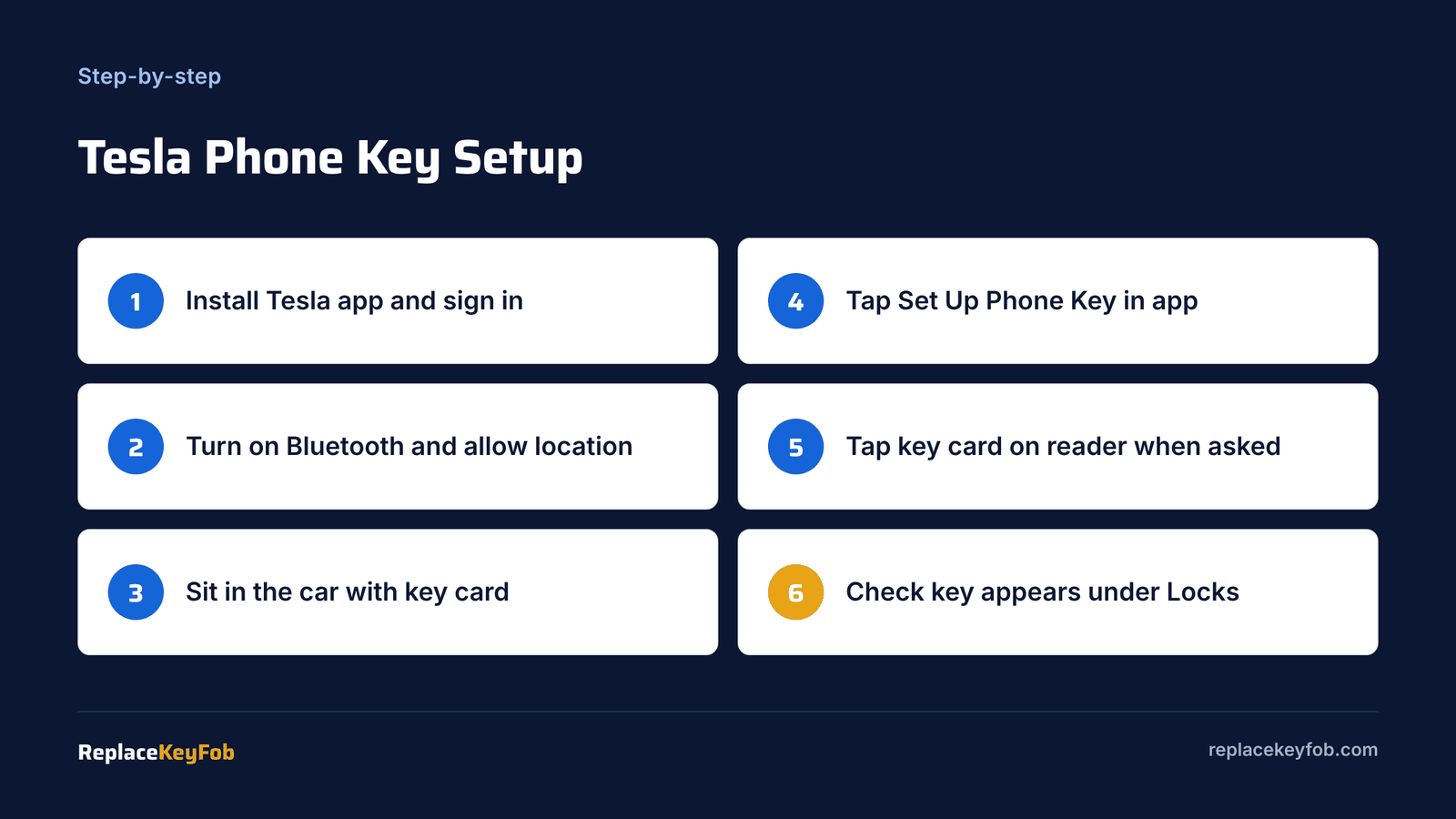
To set up a Tesla phone key, install the Tesla app and sign in to the account that owns or has access to the car, turn on Bluetooth, and allow location access. Sit in the car with a working key card, tap Set Up Phone Key in the app, then tap the key card on the card reader when the touchscreen asks. The phone appears in the car’s key list.
A Tesla phone key turns your phone into a Bluetooth key. When you walk up, the car unlocks; when you walk away, it can lock itself; and you can drive without touching a card or fob. It is the main key for most Model 3 and Model Y owners, so getting the setup right, and keeping the phone settings it depends on, matters more than with most car apps.
This guide covers first-time setup, adding another driver’s phone, setting up a new key card, and what to do when the car stops recognizing your phone. If you have a different car with a digital key, brand guides such as the Honda digital key and Mercedes digital key posts cover how those systems differ.
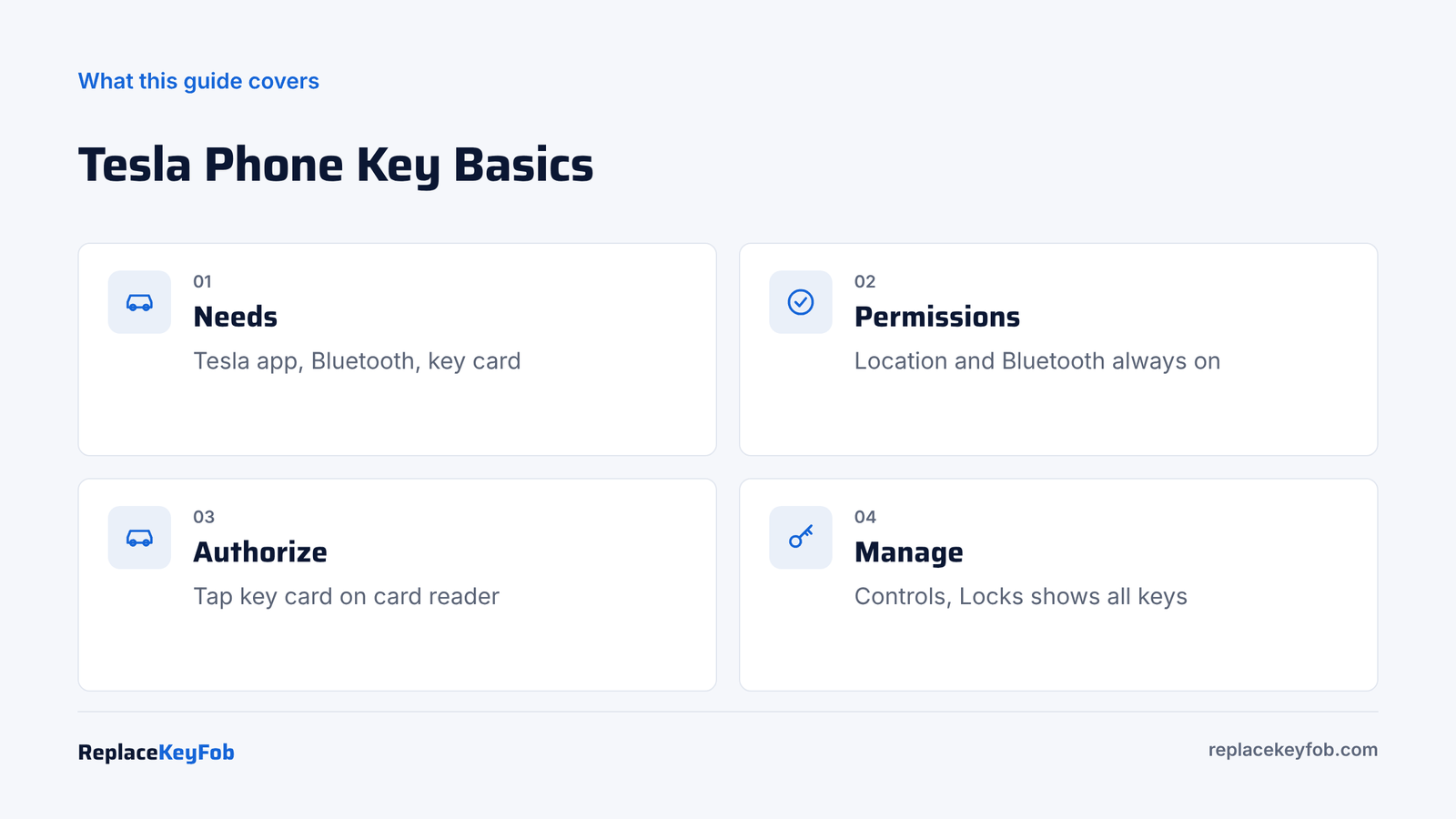
What You Need
- A smartphone that supports Bluetooth Low Energy (most phones from the last several years do).
- The Tesla app, signed in to the Tesla account that owns the car or was added as a driver.
- A working key card (or an already authorized key) to approve the new phone.
- The car nearby, ideally with you sitting inside.
Phone settings to check first
Phone keys fail most often because of phone settings, not the car. Before you start:
- Bluetooth: on, and allowed for the Tesla app.
- Location: set to “Always” for the Tesla app on iPhone, or “Allow all the time” on Android. The app uses location to know when you are near the car.
- Background app refresh / battery optimization: allow the Tesla app to run in the background. On Android, exclude it from battery optimization.
- Do not force-close the app. Swiping it away can stop the phone key from working until you reopen it.
RFID card holder sleeve
A slim card holder keeps your Tesla key card in your wallet as a backup if your phone battery dies, without blocking the card when you need it.
As an Amazon Associate, ReplaceKeyFob earns from qualifying purchases.
Step-by-Step: Set Up a Tesla Phone Key
- Open the Tesla app and make sure the correct car is selected if your account has more than one.
- Find the phone key option. Many app versions show a “Set Up Phone Key” button on the main screen. If not, look in the Security or Locks section of the app.
- Tap Set Up Phone Key. The app connects to the car over Bluetooth. Stay close to the car, preferably inside.
- Tap your key card. The touchscreen asks you to scan an authorized key card. On Model 3 and Model Y the card reader is on the center console behind the cupholders on most builds. Other models show the reader position on screen. Hold the card flat on the reader until the car confirms.
- Confirm on the touchscreen. The phone is now listed as a key.
- Check the key list. On the touchscreen, open Controls, then Locks. Your phone should appear with a phone icon. You can rename it so it is clear whose phone it is.
Why the key card step is required: the card proves you have physical access to the car. Without it, anyone who got into your Tesla account could add a phone key remotely.
Model Differences
| Model | Phone key support | Card reader location |
|---|---|---|
| Model 3 | Yes, main key | Center console behind cupholders on most builds |
| Model Y | Yes, main key | Center console behind cupholders on most builds |
| Model S and X (newer) | Yes | Shown on touchscreen prompt |
| Model S and X (older) | Limited by year | Uses key fob; app has remote features |
| Cybertruck | Yes | Shown on touchscreen prompt |
Tesla Model Y
The Model Y setup is identical to Model 3. Many owners set up the phone key the day of delivery and keep the key card in a wallet as a backup. If your Model Y came with a key fob too, it works alongside the phone.
Tesla Model 3
On Model 3, also tap the key card on the B-pillar reader (behind the driver’s door) to unlock if the phone is dead. Inside, place the card on the console reader to drive.
Adding Another Driver’s Phone
There are two ways to give someone else a phone key.
Option A: Add them as a driver in the app (recommended)
- In the Tesla app, open Security or the access sharing section and choose Add Driver.
- Enter their email address. They receive an invite and create or sign in to a Tesla account.
- They install the app, select your car, and tap Set Up Phone Key.
- They tap an authorized key card on the reader to finish.
This gives them their own login and lets you remove access later without changing your account.
Option B: Use the owner account on their phone
This works but is not recommended, because they get full account access, including purchases and remote controls.
Setting Up a New Key Card With Your Phone
If you bought an extra key card:
- On the touchscreen, open Controls, then Locks, and choose to add a key.
- Scan the new card on the card reader.
- When asked, authorize it with an already paired key card (on many software versions an existing phone key alone is not enough to approve a new card).
- The new card appears in the key list.
To remove a lost phone or card, tap the trash icon next to it in the key list. Our guide on programming a Tesla key fob covers fobs, and Tesla lost car key explains what to do if all keys are gone.
Useful Settings After Setup
- Walk-Away Door Lock: locks the car when you and your phone leave. Turn it on in Controls, then Locks.
- Lock confirmation sound: a chime when the car locks.
- Exclude Home: keeps the car from locking itself at home if you prefer.
- PIN to Drive: adds a four-digit PIN before driving, useful in addition to the phone key.
- Driver profile: link the key to your seat and mirror profile so the car adjusts when you get in.
Troubleshooting a Phone Key That Stops Working
| Problem | Likely cause | Fix |
|---|---|---|
| Car does not unlock on approach | App closed or background restricted | Open app; allow background refresh |
| Unlocks late or only at door handle | Location or Bluetooth limited | Set location to Always; Bluetooth on |
| “Phone key not detected” to drive | Phone in a bag or case blocking | Keep phone in pocket; place on charger |
| Works for owner, not added driver | Driver never paired phone | Driver taps Set Up Phone Key with key card |
| Stopped after phone change | New phone not paired | Set up phone key again; remove old phone |
| Car slow to respond everywhere | Car software or 12V issue | Restart touchscreen; check 12V battery |
A quick fix list that solves most cases: toggle Bluetooth off and on, reopen the app, restart the phone, and restart the car’s touchscreen by holding both steering wheel scroll buttons until the screen goes dark. If problems keep returning, the car’s low-voltage battery may be weak. Our Phase 5 guide on replacing a Tesla 12V battery explains the warning signs.
Mistakes to Avoid
- Relying on the phone alone. Always carry the key card or fob as a backup. A dead phone means a locked-out driver.
- Force-closing the Tesla app. It can stop the background key.
- Sharing the owner login. Use Add Driver instead.
- Leaving old phones in the key list. Remove phones you sold or replaced.
- Low power mode surprises. Some phone battery-saving modes slow Bluetooth checks; test before relying on it.
When to Contact Tesla
Book a service visit in the Tesla app if no phone or card works, if the card reader does not respond, or if the car shows key-related alerts. A new key card is inexpensive from Tesla, typically well under $50 in 2026, while a key fob costs more, often about $175 to $250 depending on model. Mobile service often handles key issues at home.
Frequently Asked Questions
Install the Tesla app, sign in, turn on Bluetooth and set location to Always. Sit in the car, tap Set Up Phone Key in the app, then tap your key card on the console reader when the screen asks.
Normally no. The car needs an already authorized key card or key to approve a new phone. If you have none, contact Tesla service.
Teslas can store many keys, including several phones, cards and fobs. You can see and remove them under Controls, then Locks.
Usually the app is closed, background refresh is off, or location is not set to Always. Reopen the app and check phone settings.
Use Add Driver in the Tesla app. They accept the invite, install the app, tap Set Up Phone Key and tap a key card on the reader.