How to Update OBD2 Scanner Software: A Step-by-Step Guide

Quick Answer
To update OBD2 scanner software, identify your scanner’s exact make and model, visit the manufacturer’s official support website, and download the correct update tool or app. Connect the scanner using the recommended cable or wireless method, follow the manufacturer’s instructions, and wait for confirmation before disconnecting it. The procedure varies by device, and some updates require an active subscription.
Steps to Update Your Scanner
- Identify your model: Check the scanner’s label, model number, and current software version.
- Find official software: Download the updater or app from your scanner manufacturer’s website or official app store.
- Prepare the connection: Charge the scanner or tablet and use a compatible data cable or supported wireless connection.
- Check eligibility: Confirm that your model supports updates and whether a subscription or activation is required.
- Install the update: Follow the on-screen instructions without interrupting power or communication.
- Verify completion: Restart if instructed, check the installed version, and confirm that the scanner connects normally.
Before You Begin
- Use trusted downloads: Avoid unofficial firmware files and third-party updater programs.
- Protect the connection: Do not unplug the device or interrupt an update while installation is underway.
- Check compatibility: An updated scanner may still lack certain vehicle-specific functions.
An OBD2 scanner can help you read engine fault codes, check emissions-related data, and diagnose certain vehicle problems. Keeping its software current may improve supported vehicle coverage, diagnostic functions, and compatibility.
However, updating an inexpensive handheld code reader is not always the same as updating a professional diagnostic tablet or a Bluetooth adapter. I’ll explain how to identify the right update method, install it safely, and troubleshoot common problems without risking your scanner.
In This Guide
What Does an OBD2 Scanner Software Update Do?
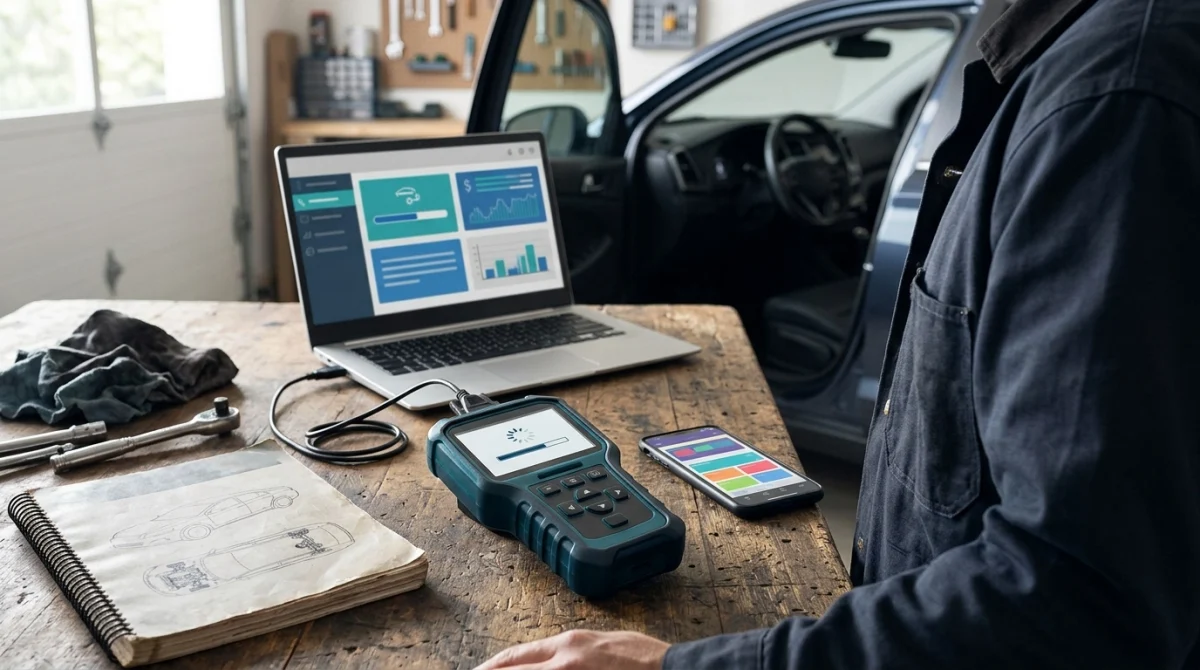
An OBD2 scanner software update installs manufacturer-provided improvements or newer software for a compatible diagnostic device. Depending on the scanner, an update may affect its internal firmware, diagnostic application, vehicle database, or supported functions.
These components are related, but they are not interchangeable. Understanding the difference helps you choose the correct download.
Software, firmware, and vehicle databases explained
- Firmware: The internal code that controls how the scanner or adapter operates.
- Diagnostic software: The application used to display data, read fault codes, and access diagnostic features.
- Vehicle database: Information that helps the device identify supported vehicles, systems, codes, and manufacturer-specific functions.
- Mobile app: The phone or tablet application used to communicate with compatible Bluetooth or Wi-Fi scanners.
Some manufacturers package several components together. Others require separate downloads or subscriptions for particular functions.
Why should you update your scanner?
An available update may help when you need newer vehicle coverage, improved diagnostic functions, or a manufacturer-provided fix for a software problem. Updates can also address compatibility issues between an adapter and its companion application.
For example, a scanner might read standard engine codes correctly but lack a newer manufacturer’s special diagnostic function. An eligible software update may add support, although the device’s hardware and product tier still determine what it can do.
Updates do not guarantee that every vehicle or module will become compatible. A basic code reader will not automatically gain the capabilities of a professional bidirectional scanner.
Specialist tip: Check the manufacturer’s vehicle coverage information before assuming an update will add a particular function to your car.
What Should You Check Before Updating?
Before downloading anything, confirm your scanner’s identity, update eligibility, and connection requirements. These checks help prevent incompatible installations and unnecessary subscription purchases.
Identify the exact make and model
Look for the brand and model number printed on the device, packaging, or original documentation. If the scanner has a settings menu, check its software or firmware information as well.
Do not rely on appearance alone. Several scanners may look almost identical while using different firmware, cables, or update applications.
Check the official update source
Start with the manufacturer’s support page or official download portal. For example, Autel’s official update information provides software-release details for supported diagnostic products.
Before downloading, confirm these details:
- The updater supports your exact scanner model.
- Your computer or phone meets the listed system requirements.
- The download comes from the manufacturer or its authorized distribution channel.
- Your device has enough storage and a suitable connection method.
- Any required account, registration, activation, or subscription is valid.
Check whether updates cost money
Some entry-level scanners receive free firmware updates, while advanced diagnostic tablets may require a paid software subscription. Update policies also vary by product generation, so do not assume that every update is free or that every older scanner remains supported.
Specialist tip: Confirm the renewal price and coverage period on the official product page before paying. You may only need a specific update package rather than a broader subscription.
Prepare a stable connection
For a computer-based update, use a compatible USB data cable rather than a charge-only cable. For wireless updates, keep the scanner and phone or tablet within the recommended connection range.
Charge portable equipment before beginning. If the manufacturer requires external power, connect it as instructed and keep that power supply in place throughout installation.
How Do You Update OBD2 Scanner Software?
The general process is to download the official updater, connect your scanner, install any available update, and verify the result. Exact menus and steps depend on the manufacturer and model.
Step 1: Download the manufacturer’s updater
Open the official support website and locate the downloads or software-update section. Select the package intended for your specific scanner and operating system.
For example, Innova’s official scanner-update instructions describe using its OBD Tool Updater with supported Windows and Mac computers.
Install the application according to the manufacturer’s instructions. Avoid unofficial download sites that bundle unknown programs with firmware files.
Step 2: Connect the scanner
Turn on the scanner if required, then connect it using the specified USB cable, Bluetooth connection, Wi-Fi connection, or update dock. Some adapters must connect to a powered vehicle, while others update through a computer or mobile device.
Open the updater and wait for it to recognize the scanner. If the application reports that the device is disconnected, check the cable, connection settings, and compatibility before proceeding.
Step 3: Check for available updates
Use the application’s update-checking feature or follow the manufacturer’s instructions for checking the installed version. Some tools automatically display available firmware, while others require you to select the device or software package.
If the updater reports that your scanner is current, do not force an installation using a different model’s files. Your scanner may already have the latest supported version, or its manufacturer may no longer provide updates.
Step 4: Install the update
Choose the official update option and follow the prompts. Keep the scanner connected and maintain the required power supply until the updater confirms completion.
During installation:
- Do not unplug the USB cable or interrupt the wireless connection.
- Do not turn off the scanner, computer, or required power supply.
- Avoid closing the updater while it is writing firmware.
- Do not assume the process has failed simply because progress pauses briefly.
Installation time varies by device, connection speed, and update size. Follow the displayed instructions rather than relying on a universal time estimate.
Step 5: Restart and test the scanner
When the updater confirms success, restart the scanner if the manufacturer requests it. Reopen the diagnostic application and confirm that the scanner connects and displays its normal menus.
Check the installed version if the device provides that information. If the manufacturer offers release notes, review them to understand what changed and which functions the update affects.
Specialist tip: If an update fails, use the manufacturer’s recovery or troubleshooting instructions before attempting a factory reset or reinstalling firmware manually.
Which OBD2 Scanner Update Method Should You Use?
The correct update method depends on your scanner’s design, not simply its price or age. Handheld code readers, Bluetooth adapters, and professional diagnostic tablets often use different update systems.
| Scanner type | Typical update method | What to check |
|---|---|---|
| Basic handheld reader | USB and computer updater, if supported | Model eligibility and cable requirements |
| Bluetooth OBD2 adapter | Mobile app or computer utility | Adapter model, operating system, and connection |
| Professional diagnostic tablet | Built-in update menu or manufacturer portal | Account, subscription, and available storage |
| Older or discontinued scanner | Legacy updater, if still supported | Operating-system compatibility and update availability |
Updating a USB-connected scanner
A USB-connected scanner usually requires a compatible computer application and a data-capable cable. The updater should recognize the device before you begin installing firmware or other software.
For supported Innova models, the manufacturer’s updater checks whether a tool has an available update. Some older models may no longer qualify, so check the official eligibility information first.
Updating a Bluetooth OBD2 adapter
Some Bluetooth adapters receive firmware through their companion mobile app, while others use a separate Windows utility. Keep the phone or computer connected to the correct adapter and follow the instructions for that exact model.
For example, OBDLink’s official firmware-update guide explains the available methods for supported adapters, including its mobile app and Windows updater.
Updating a professional diagnostic tablet
Professional tablets may provide an update menu directly on the device. Depending on the product, you might need an internet connection, a registered account, an active software subscription, or a manufacturer-authorized update package.
Some professional systems also update a separate vehicle communication interface or scan module. Follow the instructions for each component instead of assuming that updating the tablet updates everything connected to it.
Specialist tip: Never install firmware intended for a similar-looking scanner. An incompatible package can leave a device unable to start or communicate properly.
Why Is Your OBD2 Scanner Update Not Working?
An unsuccessful update does not automatically mean the scanner is defective. Connection problems, outdated updater applications, unsupported models, and expired subscriptions can all prevent installation.
Start with the error message and work through the checks below before attempting more invasive fixes.
The computer does not recognize the scanner
If the updater shows a disconnected device, begin with the physical connection.
- Reconnect both ends of the USB cable securely.
- Try a compatible data cable if the current cable only supplies power.
- Use another supported USB port.
- Check whether the manufacturer requires a specific driver.
- Close and reopen the updater, then reconnect the scanner.
For a Bluetooth device, verify that it is powered on and connected through the recommended application. Disconnect competing connections if the manufacturer’s instructions identify them as a problem.
The update is stuck or repeatedly fails
A progress indicator that appears frozen may reflect a slow installation, a connection problem, or an outdated updater. Do not immediately unplug the device, especially when firmware installation may still be running.
Check the manufacturer’s troubleshooting instructions for the specific error. If the updater confirms a failure and provides a recovery procedure, follow that procedure before trying again.
For example, Innova’s support documentation addresses updater errors and connection checks. Its instructions can help owners of eligible Innova tools distinguish an application problem from an installation problem.
No update is available
If the updater reports that your scanner is current, compare its installed version with the latest version listed for that exact model. A missing update may simply mean that no newer release exists.
Other possible explanations include:
- Unsupported hardware: The manufacturer has stopped releasing updates for the model.
- Expired subscription: The scanner requires an active plan to download newer diagnostic software.
- Wrong updater: The application does not support your specific device.
- Regional limitations: Some software packages or vehicle coverage options differ by market.
Do not pay for a subscription until you confirm that your model is eligible and that the subscription includes the update you need.
The scanner behaves differently after updating
If menus, supported functions, or connectivity change after an update, restart the device if instructed and check the release notes. Confirm that the installation completed successfully and that you used the correct software package.
If the scanner no longer starts or communicates, stop experimenting with unofficial firmware. Contact the manufacturer’s support team for the approved recovery procedure.
Specialist tip: Save the exact error message, model number, and installed software version before contacting support. These details make it easier to identify the correct fix.
How Do You Verify the Update Worked?
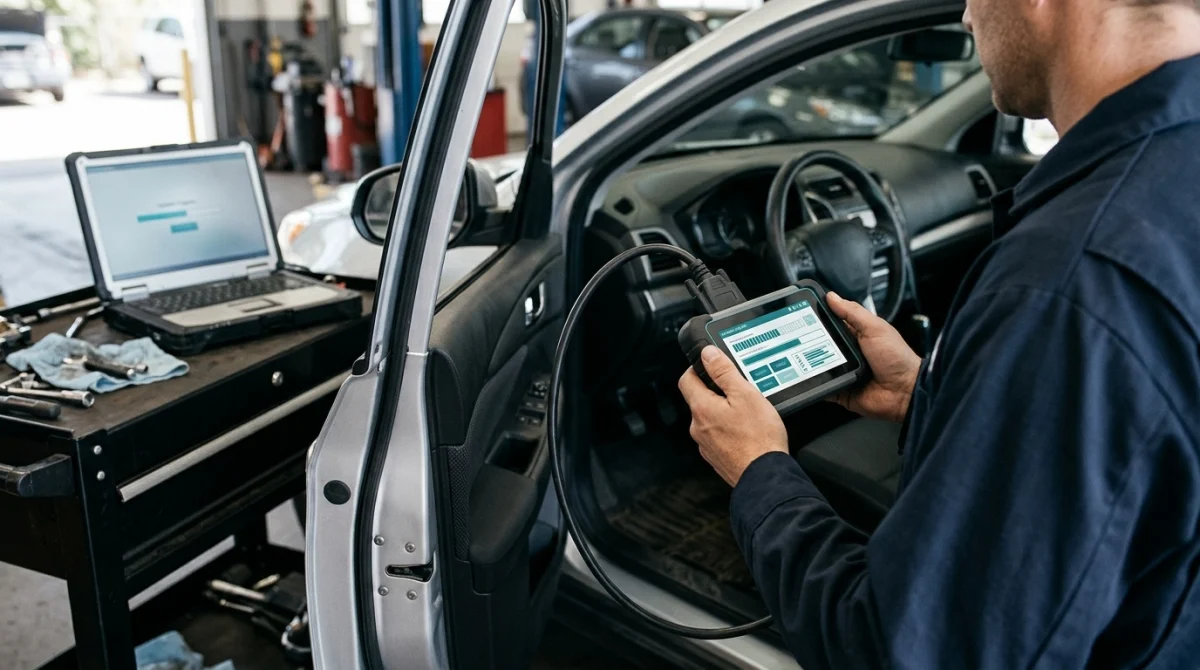
The updater’s success message is the first sign that installation completed, but a quick functional check helps confirm that the scanner is ready to use.
Use this checklist after updating:
- Version check: Confirm that the installed firmware or software version matches the expected release, where version information is available.
- Startup check: Restart the device if required and make sure it reaches its normal operating screen.
- Connection check: Confirm that the computer, mobile app, or vehicle communication interface recognizes the scanner.
- Menu check: Look for the expected diagnostic options and confirm that the menus work normally.
- Vehicle check: If appropriate, connect to a compatible vehicle and confirm that basic diagnostic communication works.
When testing on a vehicle, park safely and follow the scanner’s instructions. Do not perform diagnostic tasks while driving or assume that an updated device can access every vehicle module.
Also, remember that updating a scanner does not repair the vehicle itself. A fault code still needs proper diagnosis, and clearing codes does not necessarily resolve the underlying fault.
Specialist tip: If you use your scanner for professional work, record the version and update date so you can trace software changes when diagnosing future problems.
Frequently Asked Questions
How often should you update OBD2 scanner software?
Check for updates periodically and whenever you need a newly supported function or encounter a problem that the manufacturer identifies as software-related. There is no universal update schedule because release frequency varies by brand, model, and subscription.
Can you update an OBD2 scanner without a computer?
Yes, if your scanner supports updates through a mobile app or directly through its own interface. Other models require a Windows or Mac computer, a dedicated updater, or a specific connection cable.
Are OBD2 scanner software updates free?
Some manufacturers provide free updates for eligible devices, while others charge for advanced diagnostic software or ongoing coverage. Check the official support page for your model, because update eligibility and subscription terms can vary.
Can updating an OBD2 scanner damage it?
An update performed with the correct manufacturer-approved software is the intended maintenance process. However, incompatible firmware, interrupted power, or a lost connection during installation can cause problems, so follow the device-specific instructions carefully.
Will a software update make my scanner work with newer cars?
It may add support for certain newer vehicles if the manufacturer releases a compatible update. However, hardware limitations, licensing, model-specific coverage, and the diagnostic functions supported by the scanner can still prevent full compatibility.
Why does my OBD2 scanner say it is already up to date?
The scanner may already have the latest available release, or the manufacturer may have discontinued updates for that model. Check the official version list and verify that you selected the correct device in the updater.
Can I update an OBD2 scanner using unofficial firmware?
Using unofficial firmware is risky because the file may be incompatible, altered, or intended for another device. Use manufacturer-approved downloads and contact the support team if the official updater cannot recognize or recover your scanner.
Final Takeaway: Keep Your OBD2 Scanner Updated Safely
Updating OBD2 scanner software is usually straightforward once you know the exact model and its supported update method. The key is to use official downloads, maintain a stable connection, and verify the installation before relying on the scanner for diagnostics.
If you are troubleshooting a particular scanner, start with its manufacturer’s support page rather than downloading generic firmware. That small precaution can save time, prevent compatibility problems, and help keep your diagnostic equipment working as intended.
