How to Program the Garage Door Opener in a Tesla
This post contains affiliate links. As an Amazon Associate, ReplaceKeyFob earns from qualifying purchases, at no extra cost to you.
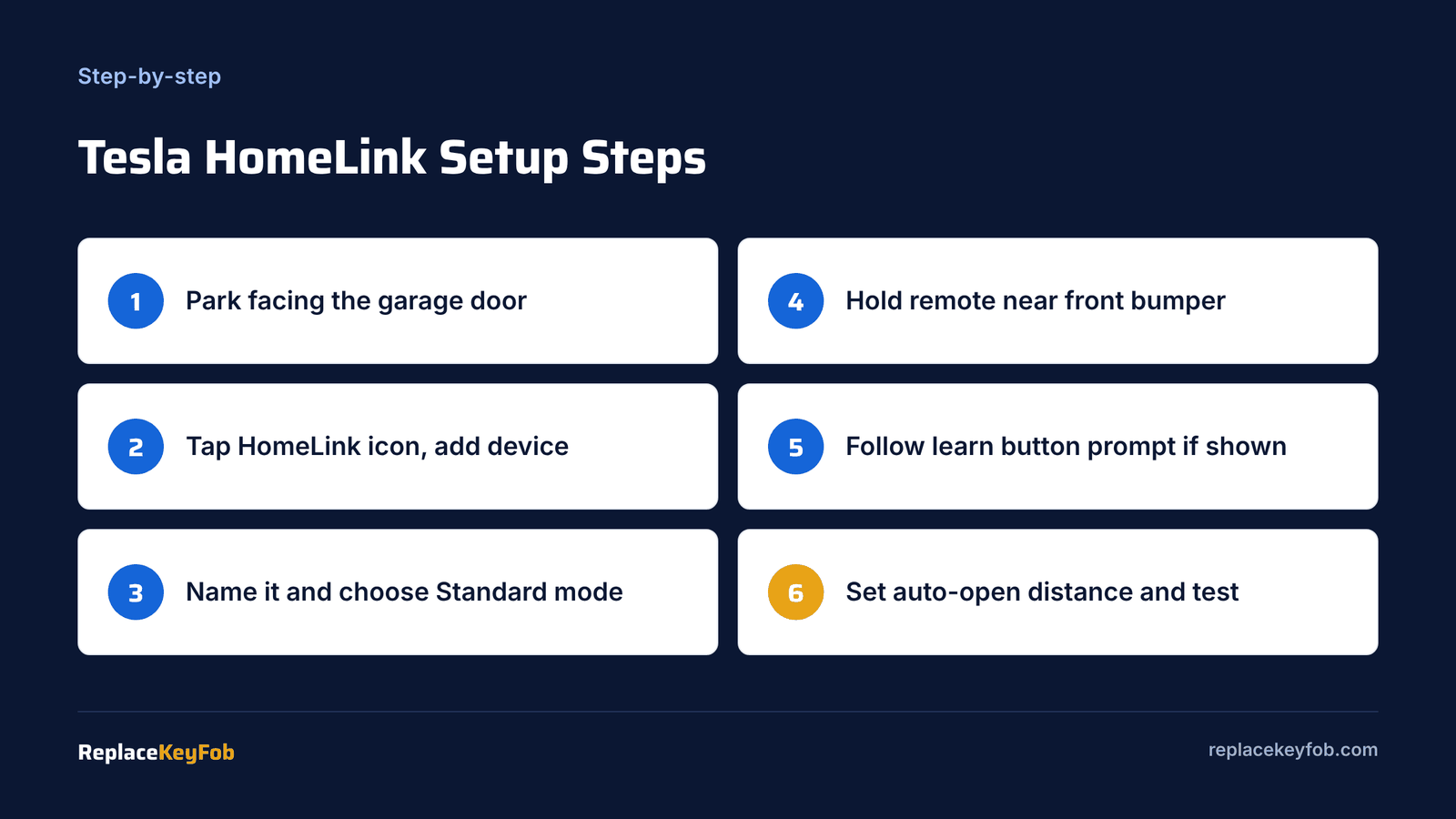
To program a Tesla garage door opener, park facing the door, tap the HomeLink icon at the top of the touchscreen, choose to create a new HomeLink device, name it and select Standard mode. Then point your garage remote at the front bumper and press and hold its button until the screen confirms. For rolling-code openers, press the opener’s learn button when the screen prompts you.
Tesla has no mirror buttons for the garage. Instead, the HomeLink receiver and transmitter are tied into the car and controlled from the touchscreen, which also lets the car open the door automatically as you arrive. Setup takes about five minutes, but there are two things to check first: whether your Tesla actually has HomeLink, and which mode your opener needs.
This guide covers Model 3, Model Y, Model S and Model X, including the auto-open and auto-close settings that make Tesla’s version different from other cars.
Step 1: Check Whether Your Tesla Has HomeLink
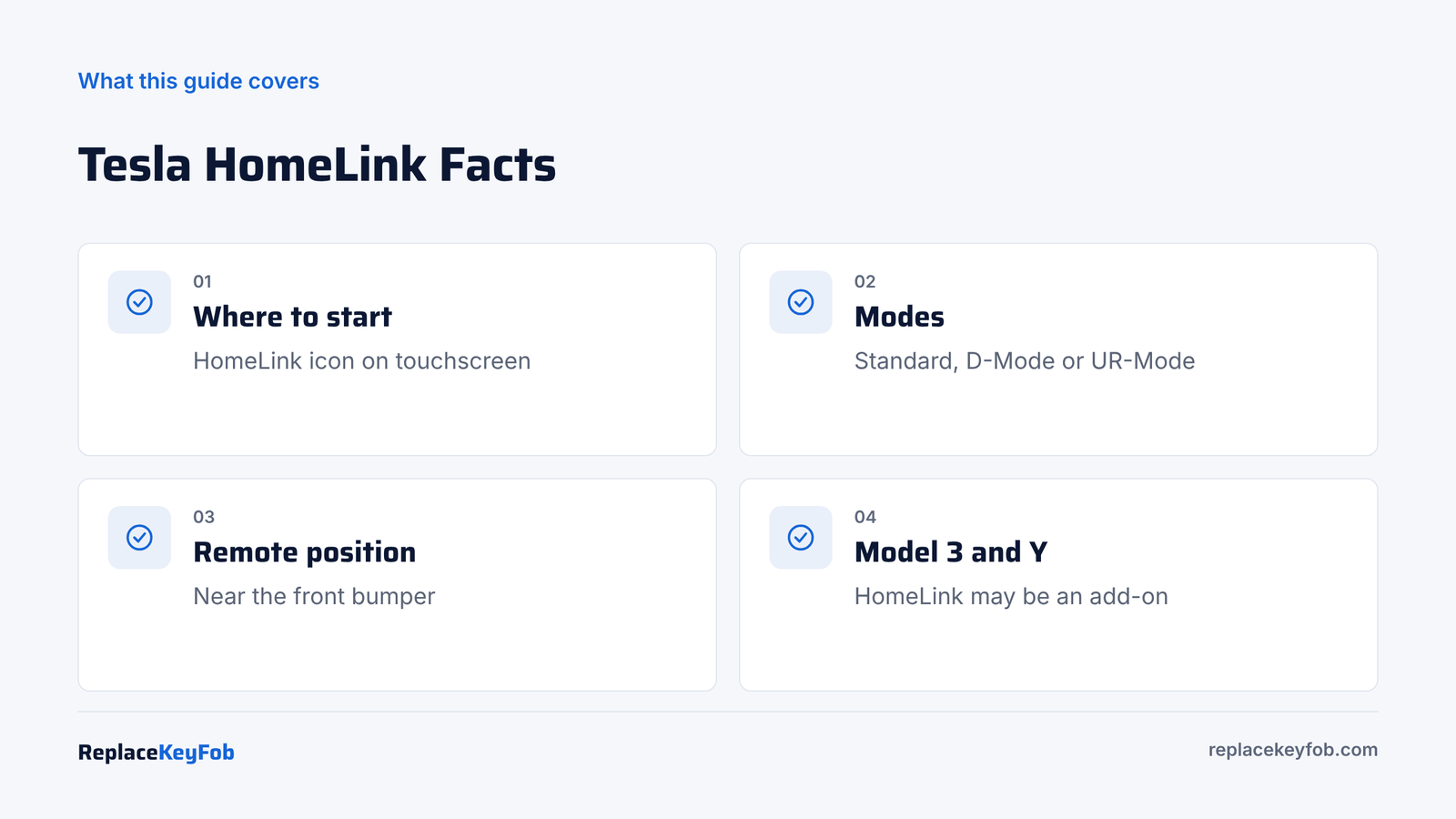
Model S and Model X have included HomeLink for most of their history. Model 3 and Model Y are different. From around 2019, HomeLink stopped being standard on many Model 3 and Model Y builds and became an add-on. Tesla sells a factory module called the Automatic Garage Opener, installed by Tesla Service.
To check:
- Look for the HomeLink icon (a small house) at the top of the touchscreen when you are near a programmed location, or in the Controls area of your software version.
- Open Controls, then Software, then Additional Vehicle Information. Many cars list HomeLink as installed or not installed.
- Check your order details in the Tesla app or account.
If your car does not have it, you can book the Automatic Garage Opener through the Tesla app or shop. Pricing varies by region and has changed over time; in the US it has typically been a few hundred dollars including installation. Alternatives include a myQ smart garage hub (controlled from the Tesla app integration or phone) or a simple visor remote.
| Tesla model | HomeLink status | Notes |
|---|---|---|
| Model S | Built in on most years | Touchscreen setup |
| Model X | Built in on most years | Touchscreen setup |
| Model 3 | Often an add-on from about 2019 | Automatic Garage Opener accessory |
| Model Y | Often an add-on | Check Additional Vehicle Information |
| Cybertruck | Check vehicle info | Software menus differ |
Universal garage door remote
A clip-on universal remote that matches your opener brand gives you a backup while waiting for HomeLink to be installed, and is useful for training.
As an Amazon Associate, ReplaceKeyFob earns from qualifying purchases.
Step 2: Program HomeLink on the Touchscreen
- Park facing the garage door, close enough that the front bumper is within a few feet of the door. The HomeLink transceiver is near the front of the car on most Teslas.
- Tap the HomeLink icon at the top of the touchscreen. If you have no devices yet, it may say “No devices” or show a setup option.
- Choose to create or add a HomeLink device. Enter a name such as “Home Garage”.
- Pick the mode. Choose Standard for most US openers. D-Mode and UR-Mode exist for specific opener types and regions. If Standard fails, try another mode.
- Follow the on-screen prompt. Point your handheld remote at the front bumper and press and hold its button. Keep holding until the touchscreen says the remote has been learned.
- Rolling code step. If the screen asks, press the learn button on your garage door opener motor. Then, within about 30 seconds, tap the HomeLink device on the touchscreen (some versions ask you to press it two or three times). The door should move.
- Save and test. Tap the HomeLink device to open and close the door.
Why the bumper position matters: the HomeLink unit sits low and forward in a Tesla, not behind the windshield. Holding the remote at the mirror, as in other cars, often fails.
Step 3: Set Up Auto-Open and Auto-Close
Tesla’s HomeLink remembers the GPS location of each device. After programming, open the HomeLink settings for that device and adjust:
- Auto-open when arriving: the door opens as you approach. Set a distance that gives the door time to open without opening too early.
- Auto-close when leaving: the door closes as you drive away.
- Auto-fold mirrors: folds the mirrors as you arrive, useful in tight garages.
- Chime on approach: an alert lets you cancel auto-open if needed.
Safety note: auto-close should only be used if your opener’s safety sensors work correctly. Check that the door reverses when the photo-eye beam is broken. Children, pets or bikes under the door are a real risk with any automatic closing.
Model Y and Model 3
Once the Automatic Garage Opener is fitted, the steps are the same on Model 3 and Model Y. Owners often program it in Standard mode first. If your opener is a newer Chamberlain or LiftMaster, the learn button step is usually required. Our guide on programming HomeLink to Chamberlain myQ covers the yellow learn button.
Model S and Model X
Older Model S and X cars may show HomeLink in the Controls area rather than the top status bar, depending on software. The menus move occasionally with updates, but the flow (create, choose mode, learn remote, learn button) stays the same.
Gates and Multiple Doors
You can program several HomeLink devices, each with its own name and location, such as the garage, a community gate and a second home. Gates sometimes need the remote to be pressed repeatedly during training. Our Phase 5 guide on programming HomeLink to a community gate explains the pulse method.
Deleting a HomeLink Device
Open HomeLink on the touchscreen, choose the device, and select Delete. Tesla lets you remove one device at a time, unlike many cars that only allow erasing all buttons together. Do this before selling the car. For other brands, see how to clear HomeLink buttons.
Phone and App Alternatives
HomeLink is not the only way to open a garage from a Tesla. Two other options are common:
- myQ integration. Tesla has added Chamberlain myQ support on many vehicles, letting the car trigger a Wi-Fi connected opener over the internet. It needs a myQ-compatible opener or hub and, in many cases, a paid subscription. It works without any radio programming, but it depends on cell coverage in your driveway.
- Phone shortcuts. Many owners use the opener maker’s phone app, or a smart hub with location-based automation, instead of the car. This works in any car but needs your phone and data.
Radio HomeLink is still the most reliable when coverage is poor, because it talks directly to the opener. If you have both, use HomeLink as the main method and the app as a backup.
Troubleshooting
| Problem | Likely cause | Fix |
|---|---|---|
| No HomeLink icon | Not installed or software layout | Check Additional Vehicle Information |
| Remote never learned | Remote held in wrong place | Hold remote near front bumper |
| Learned but door does not move | Rolling code needs learn step | Press opener learn button, then tap device |
| Standard mode fails | Opener needs another mode | Try D-Mode or UR-Mode |
| Auto-open triggers too late | Distance setting too short | Increase auto-open distance |
| Opens at random times | Location pin off | Reset device location while parked at door |
If your Tesla 12V battery was recently replaced or the car will not wake, HomeLink and other low-voltage features can act up. Our Phase 5 guides on how to replace a Tesla 12V battery and how to jump start a Tesla can help.
Costs and When to Get Help
Programming is free. If your Model 3 or Model Y lacks HomeLink, the Tesla Automatic Garage Opener accessory with service installation has typically cost a few hundred dollars in the US, and prices on Tesla’s shop vary by region. A myQ smart garage hub costs about $30 to $60 and works through Wi-Fi rather than radio, sometimes with a subscription for car integration. A garage door technician visit, if the opener itself is faulty, typically runs about $90 to $180 for the call.
If you also need a new key or card for your Tesla, see how to program a Tesla key fob.
Frequently Asked Questions
Many Model Y and Model 3 cars built from about 2019 do not have it as standard. Check Controls, Software, Additional Vehicle Information, or look for the HomeLink icon. Tesla sells an Automatic Garage Opener add-on.
Near the front bumper, pointed at the car. The HomeLink unit is near the front of most Teslas, not at the mirror.
They are transmission modes for different opener types. Standard works for most US openers. Try D-Mode or UR-Mode if Standard will not learn your remote.
Open the HomeLink device settings and enable Auto-open when arriving, then set the distance. You can also enable Auto-close when leaving.
Yes. Select it in the HomeLink menu and choose Delete. Other devices stay saved.