
How to Use an Autel Scanner (MaxiCOM and MaxiSys Basics)

This post contains affiliate links. As an Amazon Associate, ReplaceKeyFob earns from qualifying purchases, at no extra cost to you.
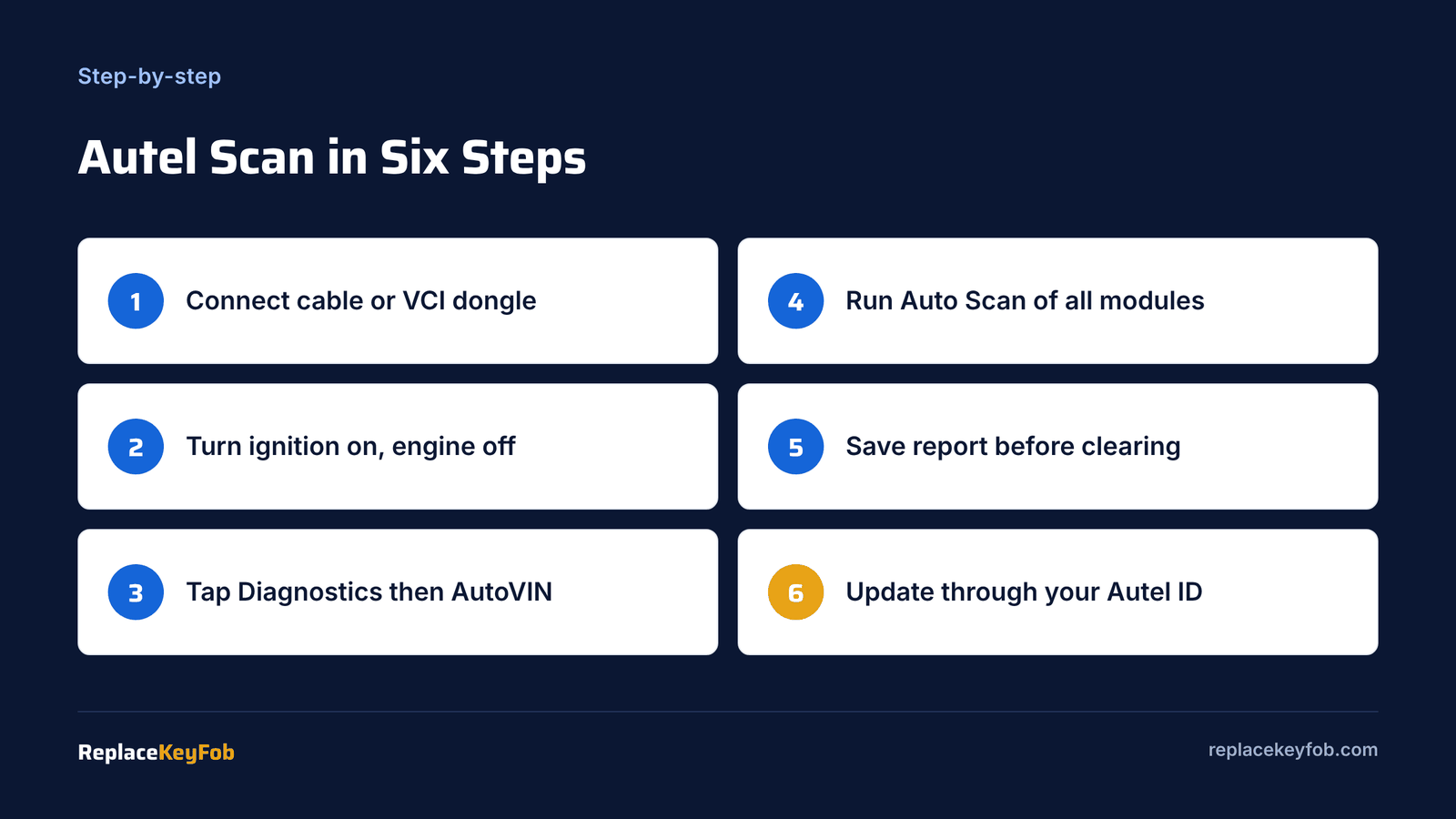
To use an Autel scanner, plug the cable or VCI into the OBD2 port, turn the ignition on with the engine off, and open Diagnostics. Use AutoVIN to identify the car, run Auto Scan to check every module, and save the report before clearing codes. On an AutoLink AL519, press the I/M key for a quick emissions readiness check.
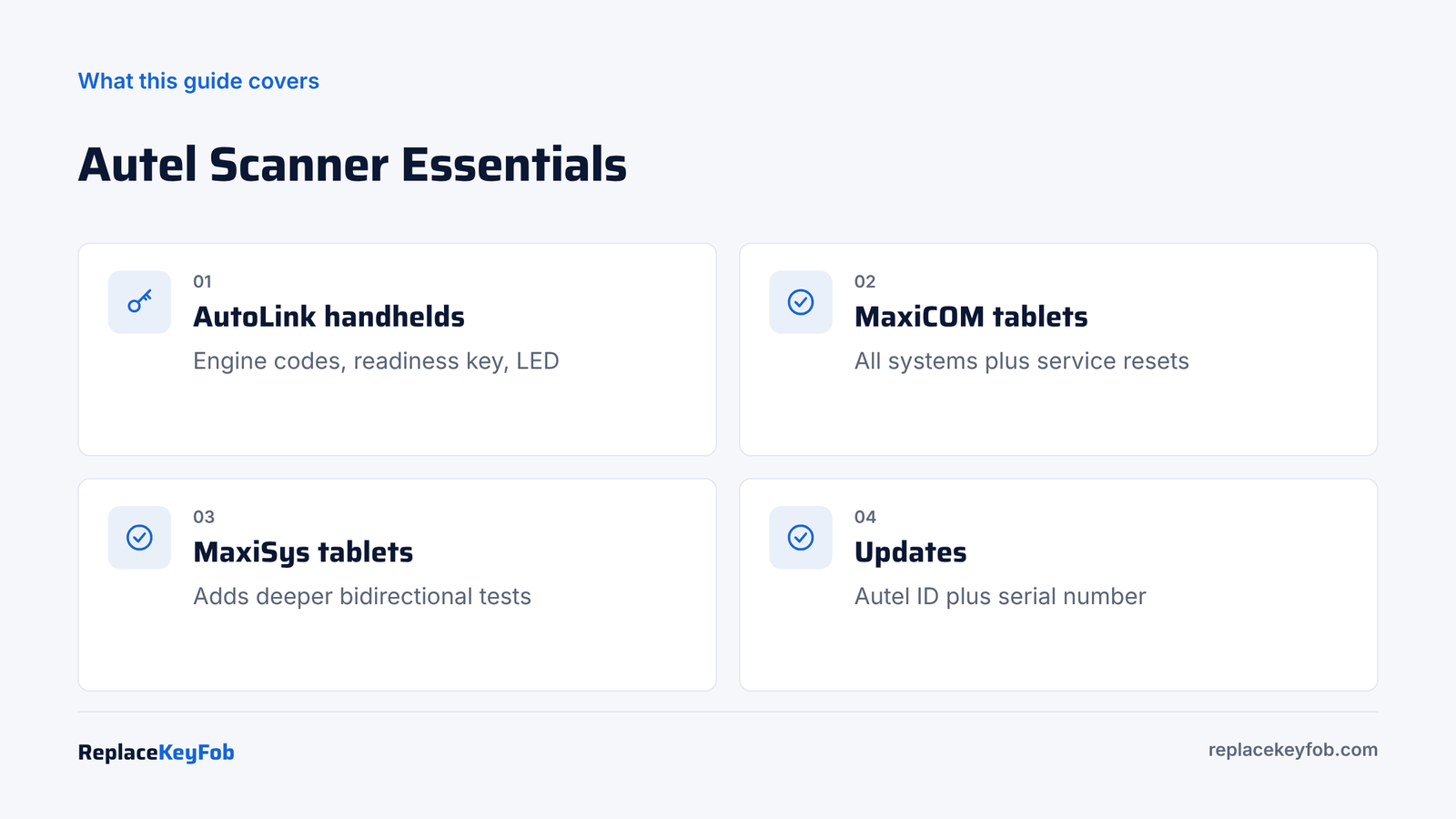
Autel makes scanners for every budget. The AutoLink and MaxiScan handhelds (such as the AL519, AL329 and MS309) read engine codes and emissions data. MaxiCOM tablets (such as the MK808 and MK900 series) add all-system scans and service resets. MaxiSys tablets (such as the MS906 family) go further with bidirectional tests and coding. Each step up adds menus, but the basic flow stays the same.
This guide covers that flow for both handhelds and tablets, plus updates and the most common errors. If you own the entry-level MS300, our Autel MS300 review covers its limits.
Which Autel Scanner Do You Have?
| Model family | Examples | Main use | Connection |
|---|---|---|---|
| MaxiScan | MS300, MS309 | Read and clear engine codes | Cable |
| AutoLink | AL319, AL329, AL519, AL549 | Engine codes, live data, readiness | Cable |
| MaxiCOM | MK808, MK808BT, MK900 | All systems, service resets | Cable or Bluetooth VCI |
| MaxiSys | MS906 series and up | Bidirectional tests, coding | Bluetooth VCI |
| MaxiIM | IM508, IM608 | Key programming plus diagnostics | VCI and programmer |
Knowing your family tells you which menus to expect. A handheld will not show service resets, and a tablet will not have the physical I/M key.
What You Need
- The scanner, cable or VCI dongle, and a charged tablet if you have one
- A car battery above about 12.4 volts with the engine off
- The VIN in case automatic detection fails
- Wi-Fi (tablets) or a Windows PC with USB (many handhelds) for updates
- An Autel ID account and the tool’s serial number and password, found in the About menu or on a card
Autel AutoLink or MaxiCOM scanner
For engine codes and readiness only, a handheld like the AL519 is enough. If you need ABS, airbag and service resets, look at a MaxiCOM tablet and confirm your car in the coverage list.
As an Amazon Associate, ReplaceKeyFob earns from qualifying purchases.
How to Use an Autel AutoLink AL519 (Handhelds)
- Plug the cable into the OBD2 port. The scanner powers on from the car.
- Turn the ignition on. Leave the engine off for code reading.
- Choose Diagnostics from the main menu. The tool links to the engine computer and shows a monitor status summary.
- Select Read Codes to see stored and pending codes. Use the arrow keys to scroll and the help key for definitions.
- Open Freeze Frame to see the conditions when the code set.
- Use Live Data to view or graph sensors. Pick a custom list to keep the refresh rate fast.
- Press the I/M Readiness key (the one-click key on the AL519) for an emissions check. The LED shows green when monitors are ready and no codes are present, yellow when a monitor is incomplete or a pending code exists, and red when a confirmed code is stored.
- Choose Erase Codes after the repair. Confirm, then rescan.
The I/M key is the most useful button for anyone heading to an inspection. One press tells you whether the car is ready, without digging through menus. For the meaning of each monitor, see what OBD2 readiness monitors are.
How to Use a MaxiCOM or MaxiSys Tablet
- Plug in the VCI and power on the tablet. Make sure the VCI is paired (look for the VCI icon at the bottom of the screen).
- Tap Diagnostics, then AutoVIN or Auto Detect. The tablet reads the VIN and loads the right software. If it cannot, pick the make and enter the VIN.
- Tap Auto Scan. The tablet checks every supported module and shows a list with a fault count for each.
- Open a module to read codes, freeze frame and live data for that system.
- Save the report with the save icon, or print or email it from the Data Manager.
- Use Clear Codes after repairs, either per module or with the one-tap clear option after Auto Scan.
Service functions
Tap Service from the home screen for the maintenance resets. Common ones include:
- Oil reset after an oil change (how to reset the oil light with a scan tool)
- EPB to retract electronic parking brake pistons for pad changes
- SAS steering angle sensor calibration after alignment
- BMS battery registration after a new battery (how to register a car battery)
- TPMS sensor relearn on supported cars
- Throttle, DPF and injector functions on models that support them
Follow each wizard exactly. Many need the engine off, the steering straight or a specific coolant temperature. Do not unplug mid-procedure.
Bidirectional tests (MaxiSys and some MaxiCOM)
Active tests let you command a part on or off, such as cycling an ABS pump, switching a cooling fan or turning on a fuel pump. This is how you prove a part works without removing it. If you are new to the idea, read what bidirectional control on a scan tool is.
How to Update an Autel Scanner
- Create an Autel ID on Autel’s official website.
- Register the tool with its serial number and password (found under About or Settings on the tool).
- Tablets: connect to Wi-Fi, open Update, tap Update All and keep the charger connected.
- Handhelds: install Autel’s PC update software (MaxiLink or the update suite listed for your model), connect the scanner by USB and run the update.
Many AutoLink models include free lifetime software updates. Tablets usually include one or two years of updates, after which you can renew a subscription. The tablet keeps working after updates expire; you just stop getting new coverage. More tips are in how to update OBD2 scanner software.
Variations by Vehicle
- US domestic (GM, Ford, Chrysler): usually broad coverage of ABS, airbag and body modules on MaxiCOM and MaxiSys.
- Asian brands: good coverage, but some older Honda, Mazda and Mitsubishi modules need a specific adapter or manual model selection.
- European cars: MaxiSys tablets usually do best. Coding functions may need a newer software version.
- Diesel trucks: DPF regeneration and injector coding are found on mid to high-end tablets only.
Troubleshooting Autel Scanner Problems
| Problem | Likely cause | Fix |
|---|---|---|
| “Communication error” or “Linking error” | Ignition off, wrong vehicle, low battery | Ignition on, use AutoVIN, check voltage |
| VCI not connected | Bluetooth pairing lost | Settings > VCI Manager, pair again |
| AutoVIN fails | Older car or unsupported module | Select make and model manually |
| Update fails | Wi-Fi drops or storage full | Use stable Wi-Fi, delete old vehicle software |
| Function missing | Software expired or not supported | Check coverage and update status |
Our guide on why an OBD2 scanner won’t connect covers wider connection problems. For a side-by-side of Autel and Launch tools, see Autel vs Launch scanners.
Reading Autel Live Data Like a Pro
Live data is where an Autel tool earns its price. A code tells you which circuit or system failed a test; live data shows you what the engine is doing right now. On both handhelds and tablets you can choose a custom list, switch between text and graph view, and record a session to play back later.
Good habits that make live data useful:
- Pick five to eight items, not fifty. The refresh rate drops when you load the full list, and quick events like a misfire get missed.
- Record a road test. On MaxiCOM and MaxiSys tablets, start recording, drive until the fault appears, then stop and review the graph frame by frame.
- Compare against known-good values. Idle fuel trims within about plus or minus 10 percent, coolant at about 190 to 220°F when warm and charging voltage of about 13.5 to 14.7 volts are good reference points. See how to read live data with an OBD2 scanner for more.
- Use the merge graph feature to put two items on one chart, such as RPM and MAF, or upstream and downstream oxygen sensors. It makes cause and effect easy to see.
On AutoLink handhelds, the graph view is smaller but still works well for oxygen sensors and coolant temperature. Use the scroll keys to change items without leaving the screen.
Mistakes to Avoid
- Running long resets on a weak battery. Connect a battery maintainer.
- Clearing codes before saving the Auto Scan report. You lose evidence.
- Using generic OBDII mode for ABS or airbag faults. Those systems need the brand-specific Diagnostics menu.
- Commanding active tests without care. Keep hands clear of fans and moving parts.
When to Call a Pro
If a module will not talk, a coding job fails, or the fault involves airbags, steering or brakes and you are unsure, stop and let a shop take over. A professional scan typically costs about $100 to $180 in 2026, and dealer programming or coding often runs $150 to $300.
Frequently Asked Questions
With the ignition on and the scanner linked, press the I/M Readiness key. The screen shows monitor status and the LED shows green (ready), yellow (incomplete or pending) or red (confirmed fault).
Updates add vehicles and fix bugs. Many AutoLink handhelds have free lifetime updates, while MaxiCOM and MaxiSys tablets usually include one or two years before renewal.
MaxiCOM and MaxiSys tablets can, through the Service menu. Most AutoLink and MaxiScan handhelds do not offer service resets.
Yes, but check that the seller can transfer or unbind the tool from their Autel ID, and confirm the update status before you buy.
Usually the ignition is off, the wrong vehicle was selected or the battery is low. Turn the ignition on, use AutoVIN and check battery voltage.